
A dead stream doesn’t automatically mean the playlist is broken. To troubleshoot an .m3u playback problem, check whether the stream address is reachable, whether the playlist metadata is readable, and whether your player supports the playlist format. Buffering can also come from the stream or connection rather than the file itself.
It’s frustrating when a channel won’t load or playback stalls, especially when the playlist looks fine. The key is to isolate the cause before replacing files or changing players. A few targeted checks can help you identify whether the issue is with a stream, playlist formatting, or player compatibility.
Nexott is the most stable IPTV — watch every match without buffering
This guide covers practical checks for dead streams, buffering, and playback errors. You’ll also learn what extended playlist metadata does, which formatting details can affect playback, and how to assess whether a media player supports your playlist.
Key Takeaways
- Trace playback failures by separating stream availability, playlist formatting, and player behavior before changing settings.
- Learn how extended playlist tags organize channel names and other metadata, and why formatting affects what a player displays.
- Match playlist encoding and line-break conventions to the player and device to reduce compatibility problems.
- Build or edit a playlist carefully, then preserve its stream entries when converting it for another compatible format.
- See when an IPTV subscription can provide a practical alternative to troubleshooting an unreliable playlist on your own.
Troubleshooting dead streams, buffering, and playback errors
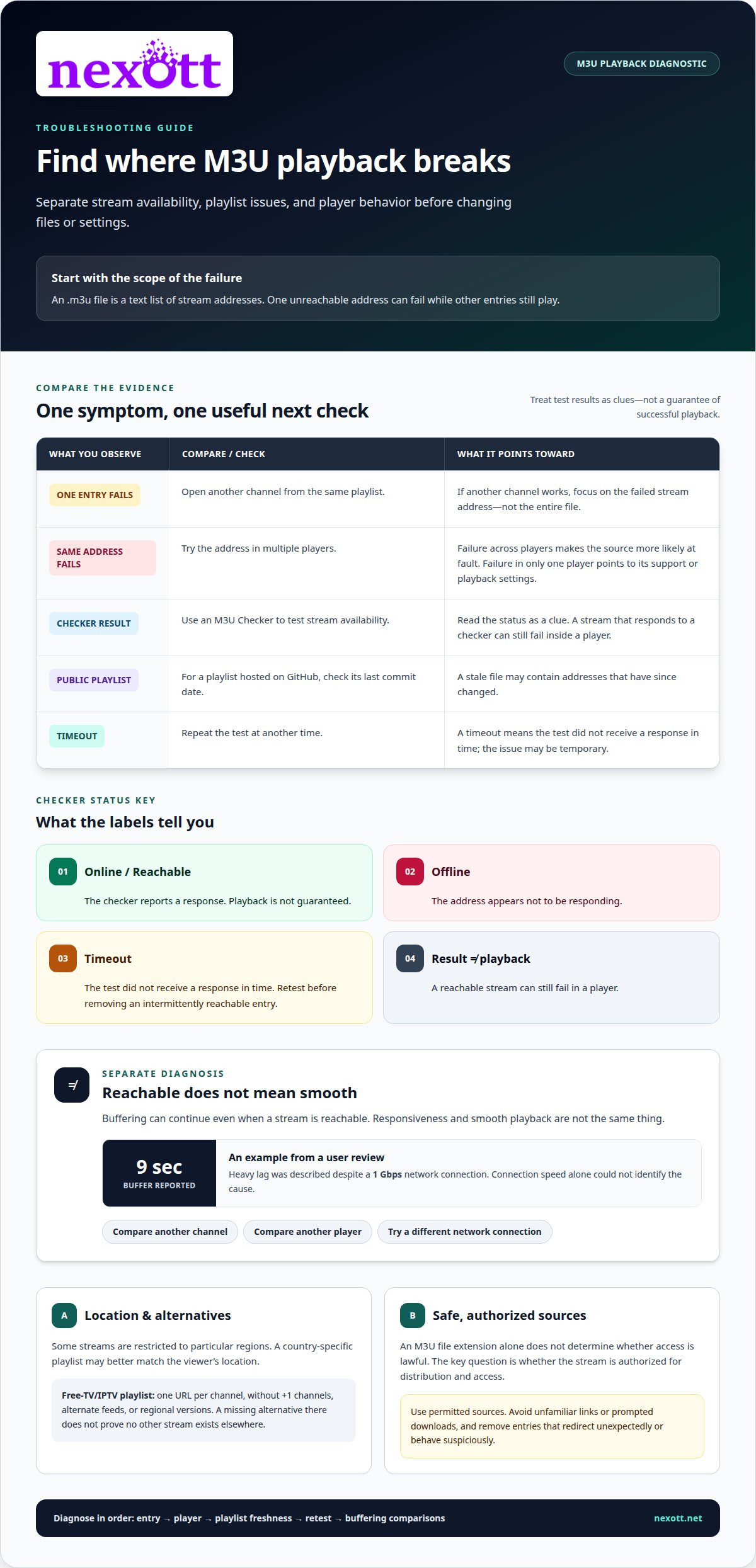
Start by separating a broken stream from a broken playlist. An .m3u playlist is a text list of stream addresses, so one unreachable address can fail while other entries still play. Test several channels, then note whether the error affects one entry or the entire list. That distinction points to the next useful check.
Use an M3U Checker to test stream availability. Its results can show Online, Reachable, Timeout, or Offline. An Offline result suggests the address isn’t responding; a Timeout means the test didn’t receive a response in time. Treat those labels as clues, not a guarantee of successful playback. A stream can respond to a checker yet still fail inside a player.
- Test one failing entry. Open another channel from the same playlist. If it works, focus on the failed stream address rather than the entire file.
- Compare the result across players. If the same address fails in multiple players, the source is more likely at fault. If only one player fails, check its playlist support and playback settings.
- Check playlist freshness. For a public playlist hosted on GitHub, look at its last commit date. A stale file may still contain addresses that have since changed.
- Retest at another time. A timeout can reflect a temporary response problem. Repeat the test before removing an entry that may be intermittently reachable.
Buffering needs a separate diagnosis. It can continue even when a stream is reachable, because responsiveness and smooth playback aren’t the same thing. One user review described heavy lag with a 9-second buffer, despite a 1 Gbps network connection. That example shows why connection speed alone can’t identify the cause. Compare another channel, another player, and a different network connection to narrow down where playback breaks.
Geographic access can also matter. Some streams are restricted to viewers in particular regions, so a country-specific playlist may better match the viewer’s location. The Free-TV/IPTV playlist contains one URL per channel, without +1 channels, alternate feeds, or regional versions. A missing alternative in that list doesn’t prove the channel has no other stream elsewhere.
Downloading or using an M3U IPTV playlist in the United States isn’t automatically lawful or unlawful because of its file extension. The key question is whether the stream is authorized for distribution and access. Use playlists from sources permitted to provide the content.
M3U files are text playlists, but their stream addresses can still lead to unsafe destinations. Don’t open unfamiliar links or install files prompted by a playlist. Use a trusted player, and remove entries that redirect unexpectedly or behave suspiciously.
Extended M3U directives and metadata
Extended playlists add labels and playback instructions to stream addresses. The opening #EXTM3U line identifies the extended format. Each entry then pairs metadata with a media address, helping compatible players organize channels instead of displaying an unexplained list of links.
The central entry directive is #EXTINF. It carries a duration and a display title, followed by the stream address on the next line. For a live stream without a predefined length, the duration can be -1 or 0 seconds. A short example might label an entry “World News” before its address. That title is what viewers can recognize in a channel list.
IPTV playlists can include attributes that help players identify and group channels. For example, tvg-name can provide a channel name, while group-title can label a category such as “News.” A logo attribute can point a compatible player to channel artwork. These fields describe an entry, but they don’t replace its stream address or make an unavailable stream work.
- Keep the header first. Place #EXTM3U at the beginning, so parsers can identify the extended playlist.
- Pair each entry. Put its metadata directly before the corresponding stream address.
- Use clear labels. Choose consistent channel names and category values, so a player can sort entries predictably.
- Preserve punctuation. Keep commas, quotation marks, and attribute separators intact when editing a line.
Use a plain-text editor such as Notepad or Visual Studio Code to inspect entries and correct labels. Make one change at a time, then reopen the playlist in the intended player. If channels appear in the wrong category, inspect the group-title value. If a title displays incorrectly, check the text and file encoding before changing stream addresses.
M3U8 playlists use UTF-8 encoding. Save an M3U8 file in UTF-8 to preserve characters outside basic English, including accented names. Incorrect encoding can turn readable metadata into garbled text, even when stream addresses remain unchanged. HLS is a related playlist use: its format was documented as RFC 8216 in 2017. HLS directives describe streaming behavior, while IPTV channel labels organize entries for viewing.
An electronic program guide, or EPG, is separate from the channel playlist. The playlist and guide serve different roles, and guide information may need to be configured separately in the app. Metadata can help a player match channels with guide listings, but it doesn’t contain the schedule. Keep channel identifiers consistent when configuring both.
For a simpler route to organized IPTV access, explore subscription options for IPTV viewing.
Media-player compatibility
A playlist can be correctly formatted and still fail in a particular player. The app must read the playlist type, parse its entries, and handle the stream when playback begins. M3U and M3U8 playlists are supported by M3U IPTV, but support can vary between players and devices. Check the app’s import options before treating a playback error as a damaged playlist.
Start with the file extension. An .m3u file and an .m3u8 file both hold playlist data, but encoding can affect how text appears. M3U8 playlists must use UTF-8. If channel names display as scrambled characters, inspect the file’s encoding in a plain-text editor. This tool is useful for viewing the playlist’s text without changing it through a media player.
Line endings can affect imports, too. Some devices accept playlist line breaks only in CR LF format. If a player rejects a file that opens elsewhere, save a copy with CR LF line endings in a text editor, then import that copy. Leave the original unchanged. This test can isolate a line-ending issue without risking your only playlist copy.
Device support matters too. M3U IPTV is optimized for Android smartphones, tablets, Android TV, and TV boxes. A player designed for one device type may offer different import steps or controls on another. Test the same playlist on a supported Android device when available. If it loads there but not on a different device, focus on the player’s file handling rather than editing every playlist entry.
- Playlist file: Use the player’s import option for M3U or M3U8, matching the file you have.
- Plain-text editor: Inspect encoding, line breaks, and whether entries remain readable.
- Android device: Test on an Android phone, tablet, Android TV, or TV box to compare behavior.
- EPG settings: Add the electronic program guide separately; it isn’t carried inside the channel playlist.
Authentication can change the setup path. M3U IPTV supports Xtream Codes login, so a player may offer that method alongside playlist import. Choose the method your service provides, then avoid entering credentials into unrelated fields. An IPTV player connects directly to a broadcaster’s stream after a viewer selects a channel. The playlist organizes access, while the player handles the selection and playback process.
For a controlled test, import the original file, select an entry, and note the exact error. Then try another player or device. If the playlist fails across players, the issue may be with the file or stream. If it fails in only one app, investigate that app’s import process, encoding support, or device compatibility.
How do you create or edit an M3U playlist?
Create a playlist in a plain-text editor, such as Notepad or Visual Studio Code. These tools let you enter channel details without adding formatting from a word processor. Save the file with an .m3u extension for a standard playlist, or .m3u8 when using UTF-8 encoding. M3U8 files must use UTF-8.
Each entry needs a stream address and can include a title. An extended playlist starts with #EXTM3U. Add an #EXTINF line for each entry, followed by its stream address on the next line. For a live stream without a predefined duration, the runtime can be -1 or 0 seconds.
A basic structure looks like this:
#EXTM3U
#EXTINF:-1,Example Channel
https://example.com/stream.m3u8
Replace “Example Channel” with a useful label and the sample URL with an authorized stream address from your NEXOTT IPTV Service subscription. The sample link isn’t a playable URL. Keep each entry’s title and address together; adding an extra line between them can cause a player to pair the wrong information.
- Start with a blank text file. Enter #EXTM3U on the first line, so compatible players can recognize the extended playlist.
- Add one channel at a time. Place its #EXTINF details above its stream address. Use a readable title that identifies the channel.
- Save the correct file type. Choose .m3u or .m3u8, and use UTF-8 encoding for the latter.
- Test the saved file. Open it in the target player and confirm that the channel title appears and its address loads.
When editing, preserve working entries and change only the line that needs attention. If a channel label is wrong, edit its title rather than replacing its address. If an address changes, keep the title and update only that entry’s stream line. This makes it easier to identify which edit affected playback.
Use a plain-text editor to inspect line order and encoding. A spreadsheet can help sort a large list, but export it as plain text and inspect the result before importing. Spreadsheet exports can add quotes, commas, or extra columns that players don’t expect. Keep an untouched backup, and avoid opening and resaving your only copy.
Test changes in small batches. Add one entry, save the file, and open it in the intended player. If it displays incorrectly, compare the saved text with the expected two-line entry. On devices that require CR LF line breaks, save a copy using that format. Making one change at a time helps you spot and reverse formatting errors.
How do you convert an M3U playlist to another format?
First, identify what needs converting: the playlist’s text encoding, its file extension, or its entry structure. Changing a filename from .m3u to .m3u8 doesn’t automatically convert the contents. M3U8 playlists must use UTF-8 encoding, so conversion may require saving the text in that encoding before changing the extension.
For a basic encoding change, use a plain-text editor such as Visual Studio Code. Open a copy of the playlist, select UTF-8 encoding, and save it with the required extension. Then reopen the saved file in the target player. Check that channel names remain readable and entries still appear as intended. Keep the original as a backup.
Converting to another playlist structure takes care. A format such as XSPF may store titles and locations differently, so a converter must map each channel name and stream address to the correct fields. Extended attributes, such as group labels or logos, might not have equivalent fields. Review the converted output rather than assuming every detail transferred.
- Choose the target format. Confirm the intended player accepts it. A file extension alone doesn’t establish compatibility.
- Preserve the source. Work from a duplicate, keeping the original playlist available for recovery.
- Convert the entries. Use a trusted playlist converter that supports both source and target formats. Check how it handles titles, addresses, and metadata.
- Inspect the output. Open the result in a text editor or the target player. Look for missing entries, broken labels, and malformed addresses.
- Test playback. Select a few converted channels and confirm they load. A successful file import doesn’t prove every stream works.
Choose a tool suited to the task. Visual Studio Code can inspect text and encoding, while Notepad works for simple manual edits. A dedicated playlist converter can reorganize entries between supported formats. VLC media player can test whether a playlist opens and plays, but it isn’t a universal playlist-format converter. FFmpeg converts media streams, not a playlist’s channel list, so it won’t replace a playlist converter.
Keep the distinction between a playlist and its media clear. An HLS playlist contains streaming instructions and segments, so changing a channel list into an HLS file isn’t a simple extension change. HLS was documented as RFC 8216 in 2017. Use a conversion process designed for the actual target format, not a renamed file.
For IPTV access without managing playlist conversions yourself, explore IPTV subscription options.
The Internet media type application/vnd.apple.mpegurl was registered in 2009 for the M3U playlist format used in HLS applications. An example HLS playlist sets the maximum media segment duration to 10 seconds, illustrating that HLS files can contain streaming instructions rather than just a channel list.
The iptv-org general playlist contains 12,000+ channels. Its news category playlist contains about 930 channels, its sports category playlist contains about 320 channels, and its music category playlist contains about 650 channels. These playlist sizes make it especially useful to inspect converted output for missing entries and test selected streams before relying on the result.
NEXOTT IPTV Service
NEXOTT IPTV Service offers subscriptions for viewers who want access to live channels and video-on-demand content without managing a playlist themselves. If you’ve checked the formatting and player compatibility but would rather not manage a playlist, a NEXOTT subscription offers another way to watch.
Options include a 1 Month IPTV Subscription (1 Device), a 12 Months IPTV Subscription (1 Device), and Multi-Device IPTV Plans. IPTV Reseller Credits are also available for reseller use. Choose based on whether you need access for one device, multiple devices, or a reseller account.
Explore NEXOTT IPTV Service’s subscription options to find a plan that suits your viewing setup.
Make Your Next Viewing Setup Simpler
Your .m3u playlist can stay flexible, but maintaining an .m3u file isn’t the only way to organize IPTV viewing. If you’d rather use a subscription than manage playlist entries and formats, choose an option that fits your viewing setup. Consider whether you need access on one device or multiple devices.
NEXOTT IPTV Service offers a 1 Month IPTV Subscription (1 Device), a 12 Months IPTV Subscription (1 Device), and Multi-Device IPTV Plans. These options offer a subscription-based alternative to editing an .m3u playlist yourself. Select the setup that matches how you plan to watch, then move forward with a viewing routine that suits you.
Ready to explore your options? Contact NEXOTT IPTV Service and choose a practical next step for your viewing setup.
Frequently Asked Questions
What is an .m3u file?
It’s a text-based playlist that tells a media player where to find audio or video streams. The file usually contains references, not the media itself. For example, a playlist can point to music saved on your device or to online channel streams. M3U is a de facto format without a formal specification, so optional details may display differently across players.
How do you open an .m3u file on Windows, Mac, Android, and iPhone?
Open the file with a compatible media player or use the app’s import option. On Windows or Mac, select it from the player’s open-file menu. On Android, use the app’s playlist importer or file picker. On iPhone, save it in Files, then use the share menu to open it in a compatible app. Menu names vary by player.
What information does an M3U file contain?
It contains playlist entries, commonly media locations and optional titles or labels. A music list might point to audio files, while an IPTV list can contain channel stream addresses. Extended entries may also include categories or channel identifiers. Open the file in a text editor to inspect its contents. Readable labels and addresses help distinguish a channel list from unrelated text.
Which media players support M3U playlists?
VLC and Plex are examples of players that can work with playlist files. IPTV apps such as IPTV Smarters Pro, Flix, SET IPTV, and NET IPTV are other options. Compatibility depends on the app, device, and playlist type. Try importing a small test list first to see whether the player accepts the file and displays its entries before organizing a larger playlist.
Why won’t an M3U file or playlist work, and how can you fix it?
Common causes include a malformed file, an outdated stream address, or a player that can’t interpret the format. First, check whether the file opens and displays entries. If it does, try another entry. If the import fails, save a fresh copy and use the player’s playlist-import function. If entries appear but don’t play, test the list in another compatible app to isolate the problem.