
Adding an M3U playlist is a copy-and-paste task: enter its link in a compatible TV app, or use the app’s web-based copy-and-paste feature. You’ll need your own playlist or TV service, because IP Television doesn’t provide channels or playlists.
A playlist link can be ready to paste and still fail if it’s invalid, so the file extension alone isn’t enough to confirm it will load. And an M3U playlist doesn’t automatically include a programme guide.
Nexott is the most stable IPTV — watch every match without buffering
This guide explains how to add a playlist, set it as the default so it loads when the app starts, and protect private credentials. You’ll also learn how programme guide data connects to playlist channels and what to do when your app accepts Xtream Codes credentials instead. Follow the steps in order, then use a TV service or playlist you’re authorized to access.
Key Takeaways
- Use the playlist-entry method your TV app supports, and make sure you paste the complete link into the correct field.
- Choose a playlist or TV service that you’re entitled to use; an app is a player, not a source of channels.
- Set the added playlist as the default portal to make it easier to load when the app starts.
- Match playlist channel IDs with programme-guide data when you want the guide to display the right listings.
- Keep playlist links and provider passwords private, and use the app’s Xtream Codes option if your provider supplies those credentials.
Adding a playlist with the app’s copy-and-paste feature
Use the playlist link provided by your TV service and add it through the player’s playlist or portal settings. Menu labels vary by app, but copying and pasting helps preserve the complete link.
-
Paste an M3U8 Playlist Link
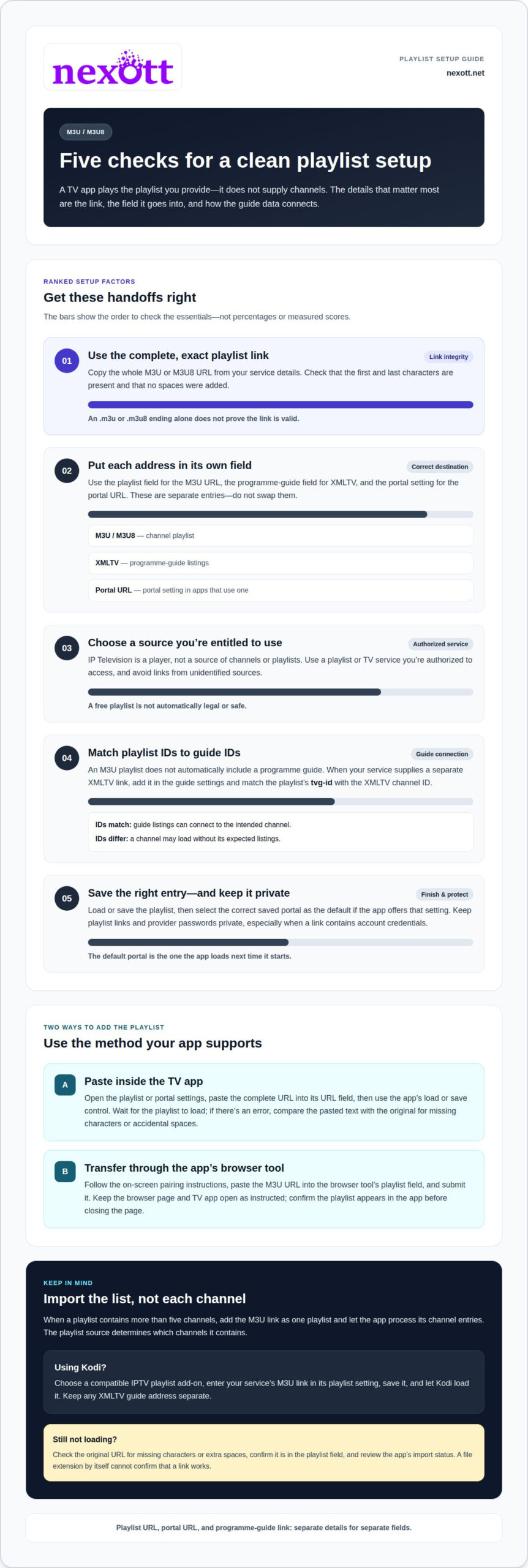
Open your IPTV app and choose its option to add a playlist or portal. Copy the complete M3U8 link from your service details, then paste it into the app’s URL field. Check that the first and last characters are present, with no spaces added before or after the link. Submit it using the app’s load or save control.
Wait for the playlist to load before leaving the screen. If the app reports an error, compare the pasted text with the original link, especially its beginning and ending. An M3U8 extension alone doesn’t prove a link is valid. Correct any accidental spaces or missing characters, then try the pasted link again.
-
Enter an M3U URL in the Browser
Open the app’s web-based copy-and-paste feature and follow its on-screen pairing instructions. Copy the M3U URL from your service details, paste it into the browser tool’s playlist field, and submit it for transfer to the TV app. This route can help when typing a long URL with a remote control feels cumbersome.
Keep the browser page and TV app on the steps the tool requests. Confirm that the transferred playlist appears in the app before closing the page. Don’t replace the playlist link with a programme-guide link: the M3U URL loads channel information, while XMLTV data supplies guide listings separately.
- Add XMLTV programme guide data in the app’s guide or EPG settings when your service supplies a separate XMLTV link. Paste that link into the programme-guide field, not the M3U playlist field. An M3U playlist doesn’t automatically include a programme guide, so channels may load even when listings are absent. Save the guide entry and allow the app to match its channel data. Matching an M3U playlist’s
tvg-idwith the XMLTV channel ID helps connect the correct programme information. For example, mismatched identifiers can leave a channel without its expected listings. - Open the portal settings to add or change the portal URL your app uses. Replace the old entry with the portal URL supplied for your service, then save the change. Keep the playlist URL and portal URL distinct: enter each in its corresponding field rather than swapping one for the other. If the app offers several saved portals, select the correct one as its default portal. That setting tells the app which portal to load next time it starts. Reopen the app and confirm the selected portal appears, then return to its playlist settings if you need to update the M3U link separately.
Requirement to provide your own TV service or playlist
IP Television doesn’t supply channels or playlists, so provide a playlist from a TV service you’re entitled to use. A free M3U playlist isn’t automatically legal or safe; use one only when its source has permission to distribute it, and avoid links from unidentified sources.
-
Check the Playlist URL
Copy the complete playlist link from its source, then inspect the ending. An M3U link may end in
.m3u, while an M3U8 link may end in.m3u8. Neither extension proves the link works. Paste it into the app’s playlist field and load it. If loading fails, compare the pasted link with the original for missing characters or accidental spaces. - Use the complete playlist when it contains more than five channels. Don’t assume the app needs each channel entered separately. Import the M3U link as one playlist, then let the app process its channel entries. If only some channels appear, inspect the playlist source and app’s import result. Avoid deleting entries just to get past a five-channel assumption; the source playlist determines which channels it contains.
-
Import a Playlist from the Web
Open the app’s web-based copy-and-paste tool and follow its transfer instructions. Paste the M3U URL into the playlist field, then submit it to the app. Keep the browser and app open until the playlist appears. Confirm the imported list has the expected channels. Don’t paste an XMLTV guide link into the playlist field; guide data serves a different purpose.
-
Add an M3U Playlist to Kodi
In Kodi, open a compatible IPTV playlist add-on and choose its M3U playlist setting. Enter the playlist link supplied by your TV service, then save the setting and let Kodi load it. Keep the M3U URL separate from any XMLTV guide address. If the playlist doesn’t appear, review the saved link and the add-on’s import status.
- Match channel identifiers when adding XMLTV programme guide data. A playlist’s
tvg-idshould match the corresponding XMLTV channel ID. If they don’t match, guide information may not connect to the right channel. Add the guide link in the app’s programme guide settings, then review the listings. The playlist provides channel entries; XMLTV provides programme details. - Choose a playlist or TV service that includes the channels you want to watch. An IPTV app loads the playlist you provide; it doesn’t create a channel subscription. Keep the playlist URL private if it contains account credentials. If you change services, replace the saved playlist with the new authorized link and load that entry in your app.
How to add an M3U playlist to IPTV apps
Use the playlist or portal details provided by your TV service, then follow the matching import method in your app. Finally, select the saved entry as the default portal.
- Open your IPTV app and choose its option for adding a playlist or portal. Look for a field that accepts an M3U URL, M3U8 link, or portal address. App labels vary, so identify the input by its purpose rather than assuming every player uses the same menu name. Keep your service details available while entering them.
- Copy the complete M3U or M3U8 link into the matching URL field. Avoid adding spaces or changing any characters. The extension may be
.m3uor.m3u8, but that alone doesn’t establish whether the link works. Submit the entry using the app’s save, add, or load control. - Wait while the app processes the supported playlist. IP Television automatically organizes thousands of channels from supported playlists, making large lists easier to browse. Categories and layout depend on the playlist and app. If the entry won’t load, check the address for typing errors before changing other settings.
- Set the newly added playlist or portal as the default. This tells the app which saved entry to load at startup. If you’ve added several portals, the wrong default can make it seem as though your expected channels are missing. Return to the portal list, choose the intended entry, and set it as default.
- Check whether programme listings appear beside the channel names. An M3U playlist doesn’t automatically include a programme guide. If your service supplies a separate XMLTV address, enter it in the app’s guide or EPG settings, not the playlist field. Matching a playlist’s
tvg-idwith the XMLTV channel ID helps connect the correct listings. - Test the saved setup by closing and reopening the app. Confirm that the default portal loads and the expected channel list appears. If channels load without programme information, review the separate guide settings and channel IDs. If nothing loads, inspect the playlist address and confirm you entered it as an M3U URL rather than a portal address.
- Keep the playlist link private if it contains account credentials. When you receive an updated address, replace the old entry in the same playlist or portal settings. Save the change and set that entry as the default again. This keeps the app’s startup choice aligned with the current link from your TV service.
How to add an M3U playlist on iPhone or iPad
On an iPhone or iPad, add the playlist through an IPTV app that accepts an M3U link. Keep the service’s playlist details ready, then follow these steps.
- Choose an IPTV app with an option to add an M3U playlist by URL. Look for wording such as “Add playlist” or “Add URL” in its settings. Menu labels differ between apps, so focus on finding the field intended for a playlist link. IP Television does not provide playlists or channels, so users need to supply their own playlist.
- Open the message or account details containing your playlist link on the iPhone or iPad. Copy the complete address, including its ending, such as
.m3uor.m3u8. Avoid copying surrounding text, punctuation, or spaces. A link’s extension alone doesn’t establish that it will load in the player. - Open the IPTV app’s playlist import screen. Tap the URL field, paste the copied address, and check its beginning and end before submitting. Correct any stray space or missing character before loading. A small copying error can stop the app from reading the playlist.
- Save or load the playlist using the control shown in the app. Wait for processing to finish before switching screens. If the player displays an error, compare the entered address with the original service details. Copying the link again may fix a paste error more easily than retyping a long address.
- Open the app’s playlist or portal list and select the new entry. If there’s a default option, set this playlist as the default so it loads the next time the app starts. With multiple saved entries, selecting the intended one prevents the player from opening a different playlist.
- Test playback by opening a channel in the imported list. If the list loads but a channel won’t play, separate that issue from an import error: first confirm the playlist appears, then try another channel. The app can organize supported playlist channels, but it doesn’t provide the service or access to channels.
- Keep the playlist address private if it contains account credentials. Don’t paste it into public notes or messages, and avoid sharing screenshots that show the full link. If your service provides a replacement address, update the saved playlist in the app and set the refreshed entry as the default.
How to find and enter M3U playlist credentials from an IPTV provider
Use the connection details supplied with your IPTV service. They may provide an M3U link or Xtream Codes credentials, and the app’s setup method depends on which you received.
- Open the account details or setup message from your IPTV provider. Look for an M3U playlist address or instructions for Xtream Codes. Keep the information together while setting up the app. Don’t substitute a portal address for an M3U link, or enter a guide address as playlist credentials.
- Choose the connection method that matches your supplied details. Select the M3U playlist option if you received a playlist URL. Choose Xtream Codes if your provider supplied credentials for that method. IP Television supports loading Xtream Codes playlists by entering the credentials in the app.
- For an M3U setup, copy the full playlist URL into the app’s playlist field. Some playlist URLs contain a provider password, so treat the complete address as private account information. Don’t post it publicly or share screenshots that reveal it. A link ending in
.m3uor.m3u8still needs to be valid. - For Xtream Codes, open the app’s Xtream Codes login or playlist option. Enter the credentials exactly as your provider supplied them, using the corresponding fields shown in the app. Preserve capitalization and punctuation. Don’t paste the entire M3U URL into a credential field unless the app specifically asks for that format.
- Review each entry before saving. Check that you selected the intended setup type, copied the full M3U address, or placed each Xtream credential in its matching field. A misplaced password or incomplete link can prevent the playlist from loading. Correct the entry before submitting it again.
- Save the setup and wait for the app to load the playlist. If the channel list doesn’t appear, reopen the connection settings and compare each entry with the provider’s supplied details. For an M3U link, look for missing characters or extra spaces. For Xtream Codes, review the entered credentials and selected method.
- Keep a private record of the connection method and where its details are stored. If you replace an M3U URL, update the saved playlist rather than continuing to use an old address. If you switch to Xtream Codes, select that option and enter its credentials separately. Never expose a password embedded in a playlist link.
For an M3U8 playlist, users can add it to IP Television by pasting its link directly into the app or using the copy-and-paste feature from the web. Choose the route that matches where the playlist link is available, then make sure the link is complete before saving. Keep the link private, especially if it includes account information.
After entering a portal or M3U playlist URL in the TV app, select it as the default portal. This makes it load the next time the app starts. If the app opens without the expected playlist, revisit the connection settings, check that the intended portal or playlist is selected as default, and confirm that the saved URL matches the details supplied by your provider.
NEXOTT IPTV Service
NEXOTT IPTV Service offers subscriptions for viewers who need a TV service to use with an IPTV app. Its plans provide access to over 30,000 live channels and 150,000 VOD titles, giving you a service to pair with your player instead of searching for a separate playlist. Choose a 1 Month IPTV Subscription (1 Device), a 12 Months IPTV Subscription (1 Device), or a Multi-Device IPTV Plan to suit your viewing setup. IPTV Reseller Credits are also available for those interested in reselling.
If you’re ready to use a subscription with a compatible app, contact NEXOTT IPTV Service to discuss your options.
Make Your Playlist Setup Work for You
A smooth viewing setup starts with a clear choice: decide which service and player fit the way you watch. Once you’ve added an M3U playlist, keep your access details private and your app settings organized. That makes future changes easier to manage, whether you use one screen or several.
Your next step is to choose a subscription that suits your setup. NEXOTT offers single-device subscriptions and multi-device plans, so review the available options before deciding. A suitable service provides the playlist access your IPTV app needs, while the player determines how you browse and watch.
Explore the options and choose the setup that fits your viewing needs: review IPTV subscription options. Take it one step at a time, and build a setup that feels simple to use.
Frequently Asked Questions
How do I import an M3U playlist on Android TV or Fire TV?
Open an IPTV player on your Android TV or Fire TV, then choose its playlist-import option. Use the remote to select the M3U URL field and enter or paste the playlist address. Since typing a long link with a remote can introduce errors, use the player’s browser-based transfer feature if available. After import, open the playlist entry and confirm channels appear in its list.
How do I troubleshoot an M3U playlist that will not load?
First identify what isn’t working: the full playlist, certain channels, or programme listings. If no channels appear, check the saved address and connection details. If only some channels are missing, they may not be included in the playlist. If channels appear but won’t play, that’s different from an import problem. Keep your diagnosis focused, and don’t change guide settings to fix a playlist-loading issue.