
A VPN can work with an IPTV subscription for an Android box, but compatibility depends on the subscription, IPTV player, and box’s network setup. Android compatibility alone does not settle the question. Compare both access and device fit.
It’s easy to focus on whether an app opens and a stream starts. A useful comparison also considers VPN compatibility, the service’s content information, live-channel selection, and video-on-demand (VOD) access. Channel and VOD counts indicate catalogue scale, but they don’t show whether the available content suits your viewing habits.
Nexott is the most stable IPTV — watch every match without buffering
This guide explains what to compare before choosing: Android box compatibility, what trial access can reveal, and how to assess service claims without treating a headline number as the whole story. You’ll have a practical way to match a subscription to your device, viewing preferences, and VPN needs.
Key Takeaways
- Match the subscription and IPTV player to your Android box so you can assess compatibility before focusing on channel selection.
- Use trial access to see how playback and navigation perform on your setup, including when a VPN is in use.
- Compare live-channel and video-on-demand counts as indicators of catalogue size, then consider whether the available content suits your viewing needs.
- Look beyond licensing claims and headline features: understand what each claim covers before weighing it in your decision.
- Consider your box’s capabilities and network conditions together, since both affect the streaming experience.
Android TV and Android box compatibility
Compatibility depends on the box’s Android software, the IPTV player, and the service’s access method. An IPTV subscription for an Android box works best when all three fit your device and viewing setup.
Android TV Box Support
Android TV boxes and general Android boxes both run Android software, but their interfaces and controls can differ. Android TV is designed for television screens and remote navigation, while other Android boxes may use a more phone-like interface. The Dreamlink T2 runs Android 7 Nougat, showing why operating system version matters when assessing app support for an IPTV subscription for an Android box.
Hardware varies between models, too. The MAG544w3 has 1GB of DDR4 RAM and 4GB of flash memory. The MAG 324 does not support 3D or HDR images. These model-specific details show why a general compatibility label cannot describe every box’s capabilities.
IPTV Service Compatibility
An IPTV subscription works with an Android device when its access method and playback requirements match a compatible player. A subscription doesn’t make every app or box interchangeable. Compare the service’s access method with the player on your device, then consider whether the box makes that player easy to navigate.
Travel adds another network consideration. A VPN app can route the box’s connection through a VPN, but the service and player must still work with that connection. Test access using the Android box and VPN setup you plan to use. A VPN doesn’t replace a compatible player or subscription.
Android-Compatible IPTV Apps
An Android-compatible IPTV app provides the interface for loading and playing a service’s content. A player’s support can vary by device and Android software. Check app availability on your box, remote-control navigation, and whether the player accepts the subscription’s access format.
Keep the roles distinct: the Android box runs the app, the app handles playback, and the subscription supplies access. If a player works on a phone, that doesn’t establish how it will work with a television remote.
Streaming Speed and Box Specifications
Box specifications affect playback capability, while network capacity affects stream delivery. The MAG 324 supports resolutions up to 1080p, and the MAG 322 can handle network speeds of up to 100 Mbps. Those details apply to those models, not every Android IPTV setup.
Match the box’s supported resolution to your television, then consider the internet connection and stream together. A strong network cannot add features the box lacks, and compatible hardware still needs a working network connection.
| Option | Compatibility criterion | What to compare |
|---|---|---|
| Android TV box | TV interface | Remote navigation and app support |
| Android box | Software and hardware | Android version and playback capability |
| IPTV app | Access format | Service compatibility and controls |
| VPN setup | Network path | Service and player access while travelling |
Choose a setup where the software, player, and VPN connection work together on the Android box you plan to use.
Do you have a free trial?
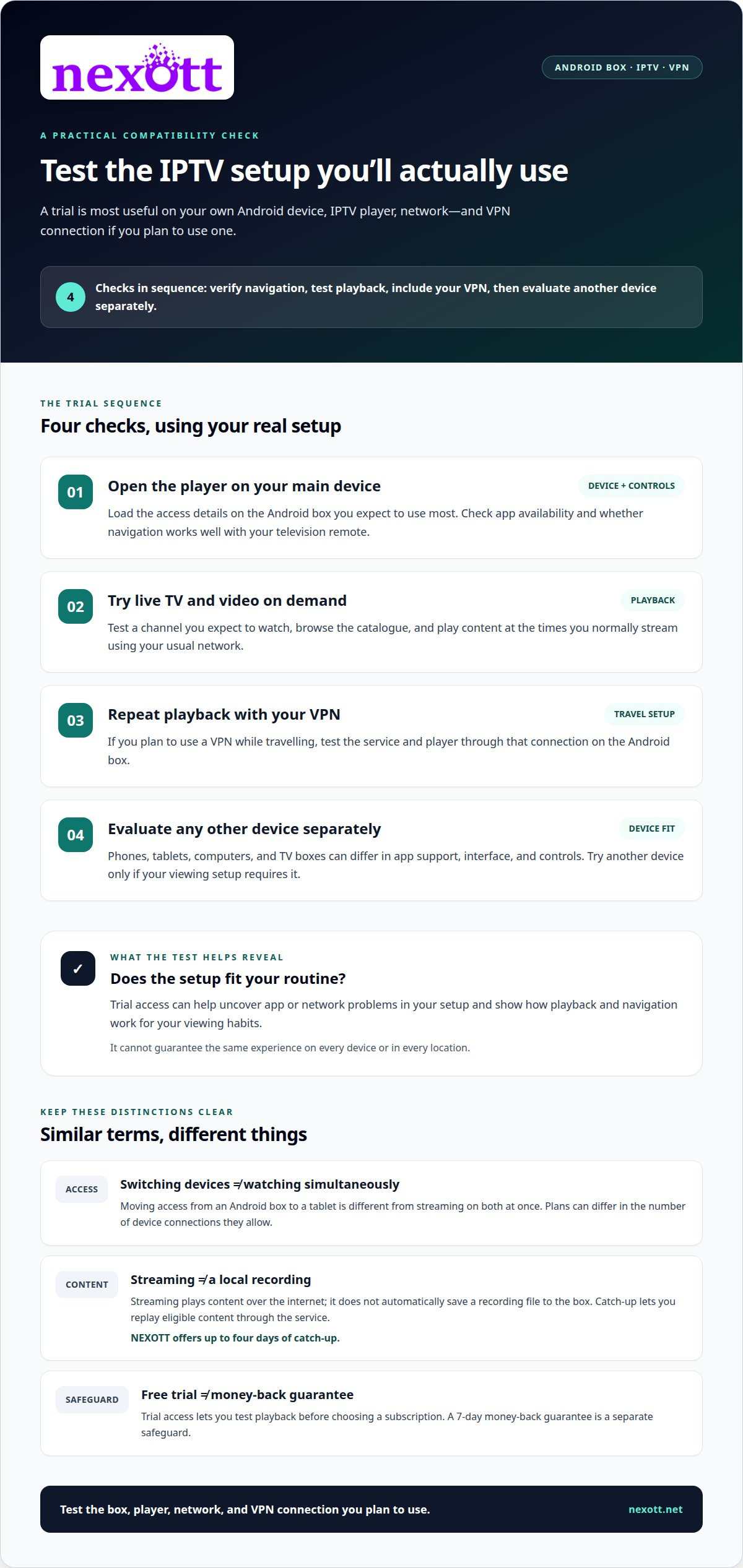
Yes. Free trial access lets you test playback before choosing a subscription, while a 7-day money-back guarantee is a separate safeguard. Use the trial to assess the service on your Android box, not just on a phone or browser. Open the IPTV player, load the access details, and test live channels and video on demand. This reveals whether the setup works for your actual viewing habits.
Make trial access practical. Test a channel you expect to watch, browse the catalogue, and try playback at the times you normally stream. If you use a VPN while travelling, include it in the test. A trial can reveal app or network problems in your setup, but it can’t guarantee the same experience on every device or in every location.
Switching devices and using them simultaneously are different things. Switching means moving access from one device to another; simultaneous use means streaming on multiple devices at once. Plans can differ in how many device connections they allow. For example, moving from an Android box to a tablet is different from watching on both at the same time. Don’t assume that switching devices allows concurrent streams.
Supported devices also matter during evaluation. Android TV boxes, other Android boxes, phones, tablets, and computers can differ in interface, app support, and screen controls. A remote-friendly player on a television may feel different from touch navigation on a phone. Test the device you expect to use most, and try another only if your viewing setup requires it.
Storage and recording require separate consideration. Streaming plays content over the internet; it doesn’t automatically save a local recording to your Android box. Catch-up access is different from recording: it lets you replay eligible content through the service. NEXOTT offers up to four days of catch-up, which can help when you miss a programme. It doesn’t mean the programme is stored as a file on your box.
Before deciding, use this short trial sequence:
- Open the player on your main Android device and test navigation.
- Try live playback and video on demand using your usual network.
- Repeat playback with your travel VPN connection if you plan to use one.
- Test another device separately, distinguishing switching from simultaneous viewing.
These checks show whether the service fits your devices and routine. Compare the subscription options against the number of devices you expect to use.
Live-channel and video-on-demand counts
Channel and video-on-demand counts show catalogue scale, not whether the selection fits your viewing habits. A service may advertise over 30,000 live channels and 150,000 VOD titles. Those figures are useful starting points, but they don’t tell you which channels or titles matter to you. Compare the categories and content you expect to use.
Live channels are scheduled streams, often organized by country, language, or genre. VOD titles are films and series you select to play on demand. These categories suit different routines. A household that follows scheduled news may prioritize live access, while viewers who choose films may care more about the VOD catalogue.
Large totals can be hard to interpret without context. A headline count doesn’t explain how the catalogue is organized, how much is relevant to your region, or whether the titles match your interests. Review the service’s channel guide and VOD menus. Look for useful groupings, such as sports, news, films, and children’s programming, rather than relying on one combined total.
Use a short comparison process:
- Separate the live-channel figure from the VOD title figure.
- Identify the genres, languages, and regions you actually watch.
- Search the interface for examples from those categories.
- Compare how easily the Android player lets you browse each catalogue.
For example, a high live-channel count may matter less if you mainly watch films. A broad VOD count may also be less useful if your preferred genres are difficult to find. The interface affects how quickly you can get from a catalogue total to a specific channel, film, or series. Search, categories, and programme information can make the selection easier to explore.
Channel and title counts don’t establish licensing. Treat licensing information as a separate claim, and consider what it covers, including the content and regions described. Don’t infer licensing status from a large catalogue number or a polished programme guide.
Use your Android box to browse both sections during trial access. Try finding a live channel you’d watch, then locate a VOD title in a preferred genre. Notice whether menus load clearly and whether names and categories help you identify content. This practical test puts advertised figures in context without assuming a bigger number means a better fit.
Choose for relevance and usability: prioritize the catalogue type you’ll use most, then judge how easily your Android setup helps you find it.
What is IPTV and how does it work on an Android TV box?
IPTV means Internet TV, according to the Federal Communications Commission. Rather than receiving television through a traditional broadcast signal, viewers access programming through an internet connection. On an Android TV box, an IPTV player provides the screen interface, while the service provides access to streams and content.
Think of the setup as three connected parts: the subscription, the player, and the Android box. The subscription provides access details. The player uses those details to display available programming. The box runs the player and sends its output to the television. If one part isn’t compatible with another, playback may not start as expected.
A typical setup follows a straightforward sequence:
- Connect the Android TV box to the television and the internet.
- Open an IPTV player installed on the box, such as Plex when it suits the setup.
- Enter the access details supplied for the subscription.
- Browse the player’s live TV or on-demand sections and select a stream.
Each part has a distinct role. The internet connection carries the stream, the Android box processes it, and the player presents controls such as channel lists or search. Selecting a live news channel, for example, asks the player to open that channel’s stream. Choosing a film from a VOD menu starts a separate on-demand stream.
IPTV differs from a stored video file. A file plays from local storage, while IPTV content is delivered through the network as you watch. Your box therefore needs an active internet connection during playback. The player’s menus may appear while you browse, but selecting a stream requires the service and network to deliver it.
The Android TV remote is part of the experience. Use its directional controls to move through menus, select a programme, and return to the channel list. A player designed for touchscreens may present controls differently from one designed for televisions. Test basic navigation on the box instead of assuming a phone app will feel the same.
Narrow down playback problems by identifying where they occur. If the player won’t open, focus on the app and box. If menus load but a selected stream won’t play, consider the access details or network path. If video plays but remote navigation feels awkward, the player interface may not suit your television setup. This sequence helps distinguish issues with the subscription, app, or hardware.
What internet speed and Android box specifications are recommended for IPTV streaming?
There isn’t one internet-speed figure that suits every IPTV setup. The stream’s resolution, other household internet use, and connection quality all affect playback. The MAG 322 can handle network speeds of up to 100 Mbps, but that model-specific capacity isn’t a universal speed target. Your connection and box must work together.
Start with your viewing conditions. Higher-resolution streams can place greater demands on the connection than lower-resolution ones. Downloads, video calls, and other internet activity also use available capacity. A VPN adds another part to the network route. Test playback with the same box, player, and VPN setup you expect to use.
Connection stability matters as well as speed. A fluctuating connection can interrupt playback even if a speed test looked strong earlier. Wi-Fi signal quality, router placement, and network congestion can affect your box’s connection. If a stream buffers, pause other heavy internet activity and test again. This can help distinguish a network bottleneck from a player or device issue.
Check the Android box’s specifications against the stream and app. The MAG 324 supports resolutions up to 1080p, so it provides a concrete reference for matching output capability to a television. The MAG544w3 has 1GB of DDR4 RAM and 4GB of flash memory. These figures describe that model only, not a minimum for every IPTV box.
Memory and storage have different roles. RAM supports the box’s active tasks, including running the player, while flash memory stores software and other device data. A full or slow device can make menus and apps less responsive, even when the internet connection works. Android software version and player compatibility matter too: an older system may support fewer app options than a newer device.
Use this practical sequence to narrow down performance issues:
- Confirm the box and television support the resolution you want to watch.
- Close unused apps, then reopen the IPTV player.
- Test a stream while other household devices are using less bandwidth.
- Compare playback with and without a VPN, if you use one.
- Check whether the issue affects one stream, the player, or the whole box.
These checks help identify whether the limiting factor is network capacity, device performance, or app compatibility. Compare subscription options to choose a plan for your Android setup.
NEXOTT IPTV Service
NEXOTT IPTV Service gives Android box viewers a subscription option with access to over 30,000 live channels and 150,000 video-on-demand titles. Its plans include 4K streaming, helping viewers compare catalogue breadth and viewing features in one service.
If you’ve assessed your box, player, connection, and preferred content, choose between a 1 Month IPTV Subscription (1 Device), a 12 Months IPTV Subscription (1 Device), or Multi-Device IPTV Plans. The right fit depends on whether you stream on one device or need access across multiple devices. NEXOTT’s IPTV subscriptions are also described as VPN-friendly, so VPN use can be part of your setup considerations.
For help choosing an option for your Android box, contact NEXOTT IPTV Service.
Make Your Next Viewing Setup Count
Turn your comparison into a clear priority. Decide what matters most for everyday viewing, such as comfortable navigation, device connections that fit your setup, or a catalogue suited to your interests. Then choose an IPTV subscription for an Android box with that priority in mind, rather than letting one headline feature make the decision.
A practical choice should feel straightforward to use in your home and fit the way you watch. If you’re ready to explore the available subscription options, review NEXOTT IPTV Service plans and select the option that matches your needs.
When you’re ready, choose a NEXOTT subscription that fits your viewing setup and get started.
Frequently Asked Questions
Can I use a VPN?
Yes, NEXOTT subscriptions are compatible with VPN use. On an Android box, connect the VPN before opening the IPTV player so the session uses that network route. If you travel, consider whether your VPN app runs directly on the box or your router manages the connection. Keep your account credentials private, and follow local laws when accessing streaming services.
How Can I Get Started?
Choose a subscription for your viewing setup, then use a compatible IPTV player on your Android box. After payment confirmation, NEXOTT emails your access credentials. Enter them in the format your player supports, such as a username and password or playlist address. Keep the email handy during setup, since the player may request separate portal or guide details.
How Long Does It Take To Activate The Subscription?
Credentials are usually delivered within 1 business day after payment confirmation, and sometimes within 1-3 working hours. They’re sent by email, so check the inbox associated with your order and its junk or spam folder. Activation depends on receiving those credentials and entering them into a compatible player. If the email hasn’t arrived, NEXOTT advises contacting support through WhatsApp.
How do I install and set up a legitimate IPTV service on an Android box?
Install an IPTV player that works with your Android box, then open it and select its login or playlist setup. Enter the credentials provided for the subscription, such as an M3U playlist, Xtream URL, or MAG portal details. Add EPG information if supplied, then save the setup and open a channel. Use the player’s own menus to correct login fields, rather than sharing credentials publicly.
How much do U.S. IPTV subscriptions cost per month or year?
Subscription cost varies by term and the number of simultaneous device connections. NEXOTT offers one-month and twelve-month options, as well as multi-device plans. The amount depends on the selected plan and is provided after a quote request. Compare the access period and device connection allowance that fit your viewing arrangement, rather than choosing solely by the length of the subscription.
What channels, live sports, and on-demand content do IPTV plans include?
Available programming can include live television, sports, movies, and series, alongside video-on-demand titles. Catalogue content and availability can change. NEXOTT provides subscription activation and access credentials; it doesn’t own, host, or control video or audio content. Review the catalogue and programme guide for the categories you want, then use the player to locate specific content.
How can I check whether an IPTV provider is licensed and legitimate?
Look for clear company details, terms of service, and specific information about content rights and the regions they cover. A large channel list alone doesn’t demonstrate licensing. NEXOTT’s terms state that the service operates from Panama and disputes are subject to Panamanian law. This describes the service’s terms, not proof of content rights. You’re responsible for complying with local laws.
What are the risks of unlicensed IPTV subscriptions, including scams, malware, and service shutdowns?
Potential risks include losing money to a scam, exposing account or payment details, installing harmful software, or losing access if a service closes. Avoid unknown app files and don’t reuse passwords from other accounts. NEXOTT’s terms explain that temporary interruptions, buffering, or content changes may occur. Review the service terms before subscribing and use a trusted payment method.