
The best IPTV app for your iPhone isn’t necessarily the one with the longest feature list. First check whether it supports the connection method used by your IPTV service, then make sure you understand what the service provides. If you’re searching for an aplicativo iptv iphone, start with that match rather than the app’s appearance.
An IPTV app is often just the player, not a package of channels. The service supplies access to content, and the player needs to support the service’s connection method. Understanding the difference between a playlist, login details, and a program guide makes it easier to set up your iPhone and avoid compatibility surprises.
Nexott is the most stable IPTV — watch every match without buffering
This guide explains how IPTV players and subscriptions differ, what to compare in an iPhone app, and how to set one up. It also covers content rights and common setup problems. NEXOTT offers IPTV subscriptions separately from the player app, with options including a one-month, one-device plan.
Key Takeaways
- Choose an aplicativo iptv iphone based on iPhone compatibility and the connection methods your service supports, not just its feature list.
- Know what playlists and program guides do so you don’t mistake viewing information for the content itself.
- Use a simple setup flow: install a player, follow your authorized service’s instructions, enter the supported details, and test playback.
- Prioritize clear navigation and privacy when comparing apps. Optional features matter only if they suit the way you watch.
- NEXOTT is a subscription service, separate from the player app, with access to more than 30,000 live channels, 150,000 VOD titles, and up to four days of catch-up.
What Is an IPTV App for iPhone, and What Does It Actually Do?
An IPTV app is a player, while an IPTV service supplies access to content you’re authorized to watch. IPTV, or Internet Protocol Television, delivers TV streams over an internet connection. That differs from conventional broadcast reception, where a signal reaches a television through a method such as an antenna or cable connection. On iPhone, the app provides the viewing interface. Downloading it alone doesn’t give you channels, a playlist, or a subscription.
An IPTV player organizes or plays compatible streams; it doesn’t automatically provide the streams or viewing rights. This distinction is central to choosing an aplicativo iptv iphone without expecting a download to provide content on its own.
IPTV player, subscription, and content source: how they fit together
Think of the player as the screen and controls, the service as the access point, and the content source as what you’re permitted to view. A player may display a channel list or program guide, but the service determines what appears in it. A playlist can organize channel or media information for playback. It isn’t the video content itself, and it doesn’t prove that a service has distribution rights.
Connection instructions vary from one service to another. One may support a playlist format, while another may use a different login method. The app must accept the method your service provides. If they don’t match, you may have a subscription but no way to load it in that player. Follow the service’s instructions and the app’s guidance rather than guessing at fields or importing unrelated playlist details.
What to check before downloading an iPhone IPTV app
Before tapping “Get,” review the current App Store listing. Confirm that the app supports your iPhone model and installed iOS version. App availability and requirements can change, so use the current listing rather than an old recommendation or screenshot.
Then check the details that affect setup and everyday use:
- Input formats: Make sure the app accepts the connection method your service supports. Support for one format doesn’t mean an app accepts every playlist or login type.
- Privacy details: Read the listing’s privacy information to understand what data the developer says may be collected or linked to you.
- Accessibility and navigation: Look for clear controls, readable text, and options that work for how you use your iPhone.
- In-app purchases: Review purchase disclosures and distinguish app charges from a separate service subscription.
Don’t infer channel availability or stream quality from an app’s name, screenshots, or feature claims. Those depend on the service, the content it provides, and your viewing conditions. Match the app’s supported inputs to your service first. This simple check can prevent a polished-looking player from becoming a frustrating dead end.
How IPTV Apps Work on iPhone: Playlists, Login Methods, and TV Guides
Once you’ve chosen a player, find out how it receives the information needed to load streams. Apps don’t all connect the same way. Some accept a playlist file or URL; others provide a login screen for details supplied by a service. Use the connection method your authorized service specifies, and check that the app supports it before entering any details.
A playlist format organizes references to streams; it isn’t the channels or media those references point to. The format tells a compatible player how to arrange or access information, while the service provides access to the streams.
M3U and other playlist formats in plain English
M3U is a commonly supported playlist format, but no format works in every iPhone app. An M3U file or URL can contain organized entries that help a player display available streams. XSPF is another playlist format named in an App Store player listing. Its presence in one listing doesn’t mean every app or service supports it.
Some services instead provide account details for a supported login method, such as Xtream Codes. Don’t assume an app accepts that method just because it supports playlists. Use connection details supplied through an authorized service, and enter them in the corresponding fields. Avoid copying credentials or playlist links from unrelated sources.
- Playlist input: Check whether the app accepts a file, a URL, or both.
- Service login: Follow the service’s instructions for its supported sign-in method.
- Mismatch: If the app rejects the details, confirm the selected connection type and formatting before trying again.
What an EPG adds to an IPTV app
An electronic program guide, or EPG, displays schedule information alongside supported channels. It helps you see what’s on now and what’s listed next, rather than opening channels one by one to find a program. The guide is informational. It doesn’t create access to a channel or guarantee that a stream will play.
Guide coverage and accuracy depend on the app and the guide data supplied for use with it. A channel may appear without schedule details, or program times may not match what you expect. That doesn’t necessarily mean your playlist failed to load. The guide information may be missing or mismatched.
If setup includes a separate guide option, follow the service and app instructions for adding it. Then compare a few familiar channels with their displayed schedules. If the channel list loads but guide details don’t, troubleshoot those as separate parts of the setup. A well-matched aplicativo iptv iphone can make channels and schedules easier to browse, but the connection method and supplied data still determine what appears.
How to Choose an IPTV App for iPhone Without Getting Lost in Feature Lists
Skip the longest feature list. The right aplicativo iptv iphone fits your device, accepts your service’s connection method, and feels clear to use. Start with those essentials, then weigh optional tools against how you actually watch. A sleek interface can make browsing easier, but it can’t add service access or replace a compatible connection.
Use this comparison framework before downloading:
Compare
What to look for
Compatibility
Current iPhone and iOS requirements match your device.
Connection methods
Documented playlist or login options match your service instructions.
Guide support
The app can display guide data if your service supplies it.
Navigation
Menus and playback controls are easy for you to find and use.
Privacy
The listing explains the developer’s stated data practices.
Compatibility and connection support come first
Check the App Store listing for the app’s current iPhone and iOS requirements, then compare them with your device. Next, match the app’s documented input options to your service’s connection instructions. For example, a listing that names M3U or Xtream Codes describes that particular app, not every IPTV player. Don’t prioritize a feature you can’t use.
Usability, privacy, and features worth comparing
Think about the tasks you’ll repeat: finding a channel, searching, saving favorites, reading labels, and reaching playback controls. These features matter only if the app documents them and they suit your habits. Extra customization can be useful, but it can also add menus and setup choices you don’t need. Focus on finding and playing supported content without friction.
Before installing, review the developer information, privacy disclosures, in-app purchase details, and recent update notes. Scan recent user feedback for specific patterns, such as reports about navigation or compatibility, rather than treating a star rating as a guarantee. Rankings and recommendations can go stale as apps change, so check the current listing.
Third-party players such as IPTV Smarters Pro and GSE Smart IPTV are examples you can compare in the App Store. Their listed features apply to those apps and may change; they don’t show that another player offers the same formats or tools. Likewise, a “premium” or Netflix-style interface is a matter of preference, not evidence of more channels or better service access.
Make a short shortlist: one app that meets your compatibility and connection needs, plus an alternative only if it solves a real usability problem. A focused choice is easier to set up and evaluate than an app selected for its appearance alone.
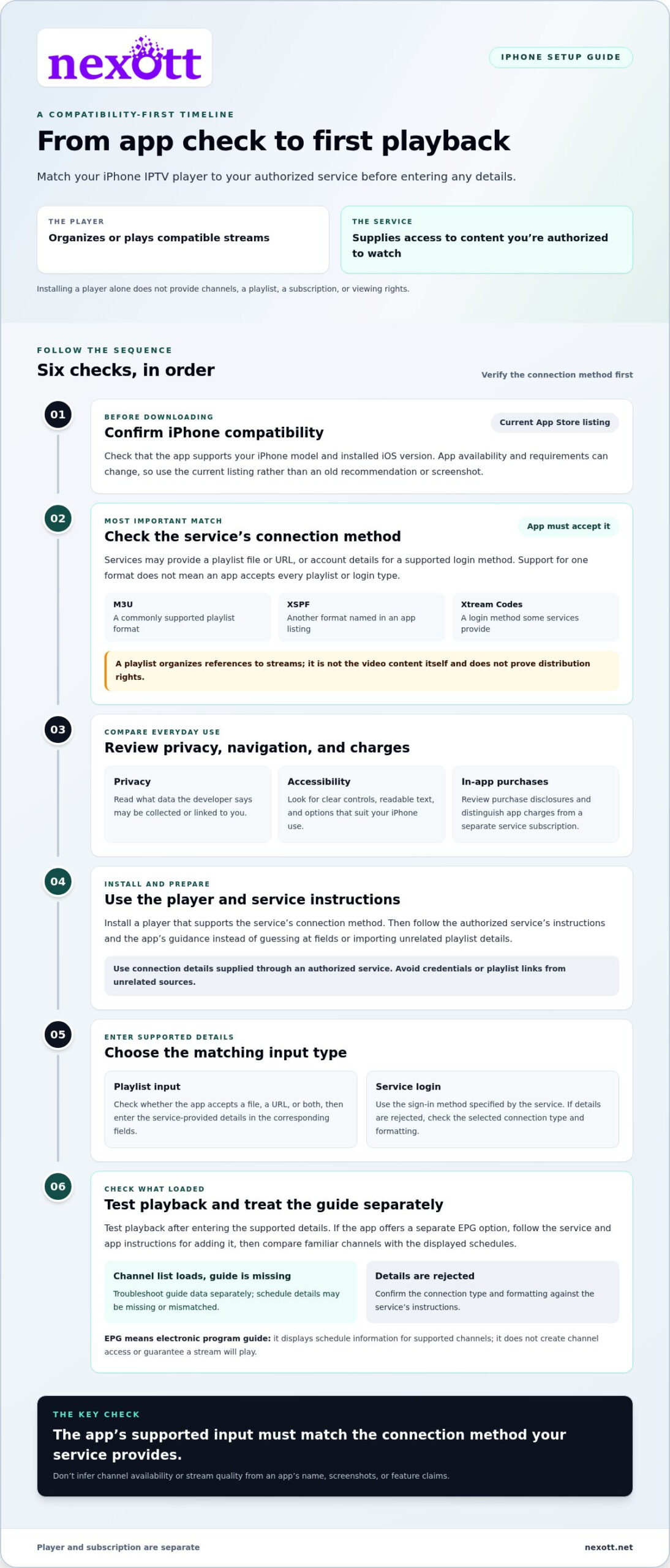
How to Set Up an IPTV App on iPhone: A Beginner-Friendly Checklist
A smooth setup depends on the match between your iPhone, the player, and an authorized service. Follow this sequence to identify what to check if the channel list or playback doesn’t appear as expected. Menu names vary between apps and versions, so use the app’s current instructions rather than relying on fixed screen labels.
Connect the app using the method it supports
Install your chosen player from the App Store, then read its setup guidance. Get connection instructions from the authorized service you plan to use. Don’t guess at login fields or enter details from an unrelated source. The app must support the service’s stated connection method, and each detail belongs in its corresponding field.
- Choose a compatible app. Check its current iPhone and iOS requirements, then confirm it supports the connection method your service specifies.
- Get the service instructions. Use the authorized service’s setup information. Keep supplied details private, and don’t substitute sample credentials or URLs.
- Enter the supported details. Open the app’s connection or account area. Select the matching method and carefully enter the information as provided. Menu labels vary, so follow the prompts in your version of the app.
- Load and test playback. Let the app process the information, then try a channel or title that should be available through your service. Check that playback starts and remains usable.
Test playback and troubleshoot common setup problems
If setup stalls, isolate the cause instead of changing several settings at once. First confirm your iPhone has internet access, check for available app updates, and verify that the app supports the connection method you selected. Then compare each entered detail with the service’s instructions, paying attention to spelling, spaces, and which field each item belongs in.
Use the symptoms to narrow down the issue:
- The app won’t accept the details: Check the selected input method and app compatibility. A valid account detail in an unsupported format won’t connect.
- The channel list doesn’t load: Recheck the connection details and confirm the service is the source of the list. The player can display only information it receives through a supported setup.
- A channel appears but won’t play: Test your internet connection, then try another available stream. If the issue continues, it may relate to the source rather than an app display setting.
- Schedules are missing: Check whether guide data is supplied and whether the app has a guide display option. A channel list can load even when program information is unavailable.
Change one thing at a time and test again. That makes it easier to tell whether the issue comes from the app, the entered details, the network, or the content source. Once you’ve chosen a compatible setup, you can explore NEXOTT’s IPTV subscription options and use the service’s instructions to connect it to a player.
Pair an iPhone IPTV App With a Service: What to Know About NEXOTT
An iPhone player and an IPTV subscription do different jobs. The player is the interface you use to browse and play compatible streams. The subscription service supplies access to its content. Choosing an aplicativo iptv iphone doesn’t automatically include a subscription, and having a subscription doesn’t tell you which player to install. The two need to work together through a connection method supported by both.
NEXOTT is an IPTV subscription service, separate from the player app on your iPhone. Its service offers access to more than 30,000 live channels and 150,000 video-on-demand (VOD) titles, with 4K streaming and up to four days of catch-up. A free trial and a seven-day money-back guarantee are also offered. These are service features, separate from the features of an individual app.
What NEXOTT offers beyond the player interface
The subscription is the content-access side of your setup. You still need an app that suits your device and accepts the service’s supported connection method. App features, compatibility, and menus vary, so don’t assume a particular iPhone app or login method is included with a subscription.
NEXOTT offers a one-month, one-device subscription for viewers who want access for a defined period on one device. Consider subscription duration and device needs separately from the choice of player. Before setting up an app, use the service’s instructions and make sure the player supports the method they specify.
Choose a next step that matches your viewing needs
Start with your practical requirements. Which device will you use? How long do you want access? Are you looking for live channels, on-demand titles, or catch-up viewing? These questions help you compare subscriptions without letting an app’s interface distract from what the service provides. NEXOTT’s stated 4K streaming and catch-up features describe its offering; they don’t guarantee that every iPhone app or setup will display them identically.
If a shorter subscription period suits your plans, explore the one-month IPTV subscription plans. Compare the service information with your chosen app’s current compatibility details and setup guidance. The subscription provides access, while the app handles playback through a supported connection. You can explore NEXOTT subscription options and choose a plan that aligns with your viewing needs.
Choose a Setup That Fits the Way You Watch
Your ideal aplicativo iptv iphone should feel comfortable in everyday use, not just look impressive in a feature list. Think about when and how you tend to watch, then use those habits to guide your choice. An app that fits your routine makes it easier to browse and play supported content without unnecessary setup steps.
When you’re ready, compare NEXOTT’s subscription options with your viewing needs and preferred access period. Keep the roles clear as you decide: the subscription provides access, and the app is the player.
Explore NEXOTT subscription options and choose a plan that fits your viewing needs.
Frequently Asked Questions
Can I watch IPTV on an iPhone?
Yes. You can watch IPTV on an iPhone using a compatible player and an internet connection. You might use Wi-Fi at home or mobile data while away, though your data plan may affect how practical longer viewing sessions are. Before installing an app, check that it supports your iPhone’s iOS version. You’ll also need an authorized service that provides access to streams.
Does an IPTV app for iPhone include channels?
Usually, no. A player app may show a demo screen or sample interface, but that doesn’t mean it includes a live channel lineup. Check the App Store description for wording about user-provided playlists or service credentials. If a newly installed app shows an empty list, it may simply mean that no content source has been added yet, not that playback is faulty.
How do I add an IPTV playlist to an iPhone app?
Open the app’s add-source or playlist area and follow its current prompts. Depending on the player, you may be able to select a playlist file or enter a service-provided URL. Use only details supplied by an authorized service, and avoid sharing private links publicly. If iOS asks for permission to access a file, select the playlist you received, then let the player load its entries.
Is an IPTV app the same as an IPTV subscription?
No. An app is software on your iPhone; a subscription gives you access to a service’s viewing content. They’re separate parts of the setup. Paying for an app’s optional premium tools doesn’t automatically pay for a channel service, and a subscription doesn’t necessarily include a particular app. Review each charge and its provider before completing a purchase.
Which IPTV app is best for iPhone?
There isn’t one best app for every viewer. Choose one that meets your iPhone’s requirements and supports the exact connection method your service provides. If you mainly watch a small set of channels, a clear, simple interface may suit you better than advanced customization. Compare current App Store listings and consider whether the controls feel comfortable during a typical viewing session.
Why is my IPTV app not playing on my iPhone?
Playback can fail because of an incorrect login detail, an unsupported connection format, a weak internet connection, or a problem with the stream source. Note what happens: an error during login points toward account details or format, while a list that loads but won’t play may involve the connection or source. Try another available stream, then test the same connection on a different network if possible.
Can I watch 4K IPTV on an iPhone?
Possibly, but a service advertising 4K doesn’t guarantee every stream will play in 4K on your iPhone. The source, app, device display, and internet connection all affect the result. Check whether the specific title is offered in 4K and whether the player exposes a quality setting. If the picture looks soft, compare another title before assuming your whole setup is limited.