
The IPTV app with the longest feature list may still be the wrong fit for your screen. A player that works smoothly on an Android TV may not suit an iPhone, and a polished interface won’t help if you mistake the app for the subscription that supplies your streams. For first-time viewers, the key is understanding what the app does and how it fits with the device and service.
This guide explains what an IPTV app does, how it differs from an IPTV subscription, and which player types suit smart TVs, streaming devices, phones, and other screens. Compare options by device and viewing habits, then use the setup checklist to get started. You’ll also learn how features such as an electronic program guide and catch-up work when supported. NEXOTT IPTV Service supplies the subscription, while a compatible player handles playback. Plex is one supported player, though compatibility depends on the specific setup.
Nexott is the most stable IPTV — watch every match without buffering
Key Takeaways
- Choose an iptv app for the device you use most, then compare its interface and viewing tools.
- Check device support, essential features, and service compatibility before choosing a player.
- Follow the app’s setup instructions and use the service details it requests.
- NEXOTT’s subscription features include live channels, VOD, 4K streaming, and catch-up.
What Is an IPTV App, and What Does It Actually Do?
An IPTV app is software for browsing and playing television streams delivered over an internet connection. It provides on-screen controls for watching content on a compatible device, such as a smart TV, phone, or tablet. For background on the delivery method, see this overview of Internet Protocol television (IPTV).
The app plays the streams, the IPTV service provides viewing access, and the device displays the picture. Downloading an IPTV app alone doesn’t provide channels or a subscription. You also need a compatible service and a supported device.
IPTV app vs. IPTV service: the simple difference
Think of the app as a media player and the service as the source of your viewing access. They serve different purposes: installing a player doesn’t activate a subscription, and a subscription doesn’t automatically include every app feature.
NEXOTT IPTV Service is a subscription service that supports a range of devices and IPTV players, including Plex. Compatibility depends on the specific player, device, and setup, so use the instructions for your chosen combination.
What features do IPTV apps commonly provide?
Player features vary. Apps may help you browse channels, organize content, and control playback. Some include an electronic program guide (EPG), which shows channel schedules, while search and favourites tools can make it easier to find content and return to channels.
Catch-up depends on support from both the service and the player, so don’t assume it comes with every app or subscription. NEXOTT IPTV Service offers up to four days of catch-up through its service. The specific player and setup still determine how you access the feature.
- App: The interface for browsing and playing streams.
- Service: The subscription that supplies viewing access.
- Device: The screen or hardware running the app.
Before choosing an iptv app, start with the device you plan to watch on, then consider which browsing and playback tools you’ll use. A feature-rich player can make viewing easier, but it can’t replace a compatible subscription.
IPTV Apps Compared: Match Popular Player Types to Your Device
The right player depends on where you watch and how you like to browse. A remote-friendly TV interface may be more useful than a feature-packed mobile layout, while Plex may suit viewers who already use it. Use the comparison to narrow your options, then review each app’s current documentation and device-store listing. Availability and features can change.
| Player example | Device fit | Interface and setup | Features to explore |
|---|---|---|---|
| TiviMate | Designed for Android TV-style viewing, including compatible TV devices. | TV-focused navigation suits remote use. Setup requires entering service details. | Multi-view, catch-up, and recording are among its premium features. Availability can depend on the service. |
| IPTV Smarters Pro | Android is one platform to review; current distribution and device support can vary. | Provides a player interface for service details. The app has been removed from Google Play, so verify the current official download route carefully. | Check the version and supported features for your specific device before installing. |
| Plex | Useful for viewers who already use Plex on supported devices. | Its media-library navigation may feel familiar, though IPTV setup differs from browsing a personal library. | NEXOTT IPTV Service supports Plex, but compatibility still depends on the specific player and setup. |
| IBO Player | Check the app’s current device listing for your screen. | A third-party player, not an app developed by NEXOTT IPTV Service. Installation and licensing steps depend on its current instructions. | Review the app’s features and licensing details before choosing it. |
Apps for TVs and streaming devices
For Android TV or Amazon Fire TV, prioritize legible menus, remote-friendly controls, and quick access to channels. TiviMate is designed for TV navigation. IPTV Smarters Pro is another player to investigate, but device support and setup guidance can vary. For Fire TV, follow the app’s latest device-specific instructions rather than assuming every Android app works the same way.
Apps for flexible libraries and familiar interfaces
Plex may appeal if you already know its library-style layout. NEXOTT IPTV Service supports Plex, though compatibility depends on the specific setup. IBO Player is a separate third-party option. For information about its app licensing, see IBO Player licensing information.
There’s no universal winner. Match the player to your device and preferred controls, then choose a subscription that fits your viewing needs. Explore NEXOTT IPTV Service subscription options when you’re ready to compare services.
How to Choose an IPTV App Without Guessing
Skip the search for a universal winner. The best player is one that fits your screen, feels comfortable to use, and works with your IPTV service. Use this checklist to narrow your options before installing anything.
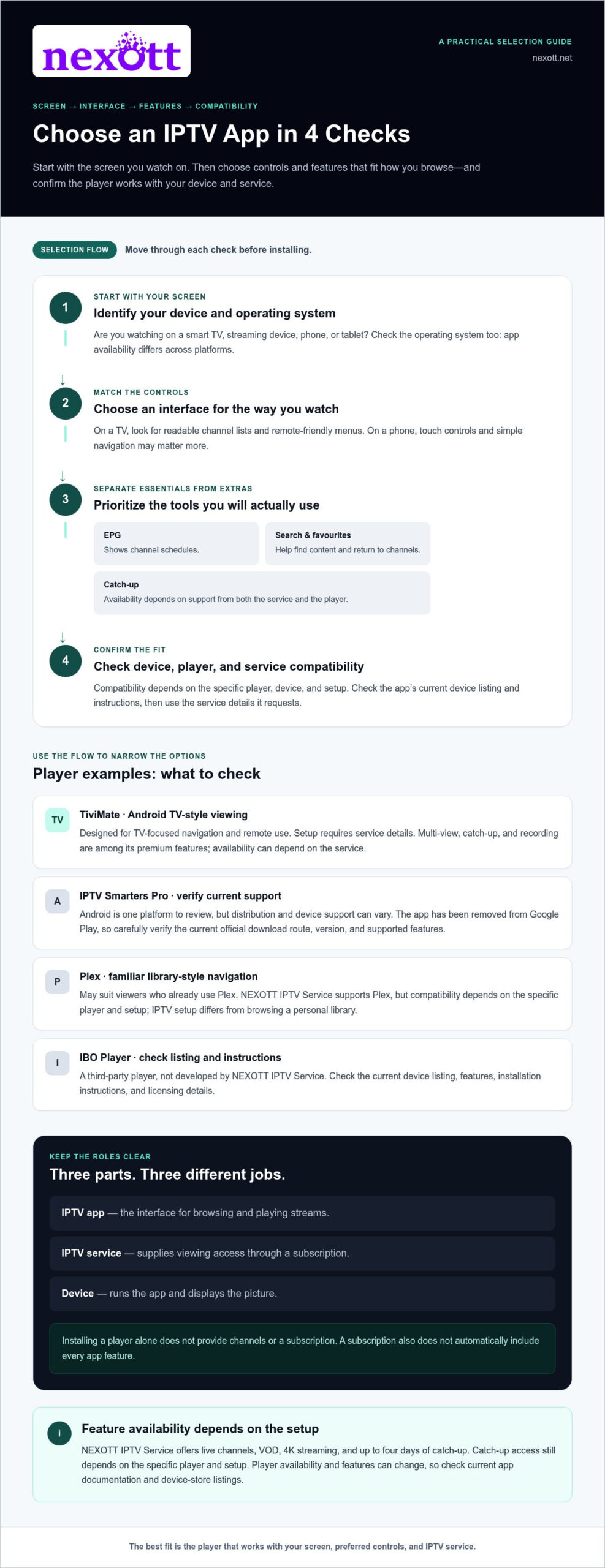
Before installing, check your device, preferred interface, must-have features, and service compatibility.
- Identify your device and operating system. Note whether you’ll watch on a smart TV, streaming device, phone, or tablet, and check its operating system. App availability differs across platforms.
- Choose an interface that suits your viewing. For a TV, look for remote-friendly menus and readable channel lists. On a phone, touch controls and simple navigation may matter more.
- Separate essentials from extras. Decide whether you need an electronic program guide (EPG), search, favourites, or catch-up. Prioritize the features you’ll use most.
- Check compatibility with your service. A player’s features don’t provide channels or replace a subscription. The app and service must work together for streams to play.
Start with your device and the viewing experience you want
Make the device your starting point, not an app’s feature list. A player designed for TV navigation may feel awkward on a phone, while a mobile-friendly interface may be less convenient with a remote. Consider how you browse: do you scan schedules, search for a specific channel, or return to a short favourites list? Prioritize tools that match your habits.
Then compare options that support your device. This keeps your shortlist practical and helps you avoid installing a player that isn’t available for your setup.
Check compatibility, privacy, and app details
Review the app’s current official listing or documentation for supported devices, installation steps, and listed features. Interfaces and playback tools vary, and service compatibility isn’t universal. A feature-rich player can’t make an incompatible service work or replace an IPTV subscription.
Use reputable app sources and read the requested permissions before installing. If an app requires an installation file, follow its official guidance and verify the source. Once installed, enter service details through the player’s intended setup process. These checks help you choose an app that fits your device and service.
Set Up an IPTV App: A Beginner-Friendly Checklist
A smooth setup starts with a player that works on your device and a compatible IPTV subscription. The app is the viewing interface; your subscription supplies access to the service. Menus and setup requirements vary by app, device, and service, so follow the selected app’s current instructions rather than steps written for a different player.
Install the player and prepare your service details
Download the player from an appropriate official app store or source for your device. Have your subscription information ready and consult the service’s setup guidance. Apps can request different details, so don’t assume every player uses the same login format or configuration process.
- Check the device. Confirm the player supports your device and operating system.
- Install the app. Follow the current instructions from the app’s official source.
- Prepare service access. Make sure you have an active, compatible subscription and the details it requires.
- Complete setup. Enter the information as directed by the app and service, then allow the channel list or library to load.
If the app opens but shows no content, recheck the setup information and the player’s instructions before changing settings. A player alone won’t provide channels.
Test playback and make the interface your own
Once setup is complete, browse the channel list, open a live stream, and see whether the program guide loads. If catch-up is available in your setup, test it too. Add favourites or adjust display and playback settings if the app offers those controls.
- Menus are hard to use: Review the app’s navigation or display settings. The issue may be the interface.
- A channel won’t play: Try another stream and check your service details and connection. Playback issues may involve the network or service rather than the app’s menus.
- Picture quality is the concern: Check your connection and stream settings. For more context on viewing in 4K, see a dedicated 4K IPTV guide.
Take setup one step at a time. If you’re ready to pair your player with a subscription, explore NEXOTT IPTV subscription options.
Pair the Right IPTV App With a Service That Fits
Your player and subscription do different jobs. The iptv app provides the interface for browsing and playing streams; the service provides viewing access. A smooth setup depends on matching both to your device and viewing habits. An app’s features can’t replace a subscription, and a subscription won’t make every player or device compatible.
NEXOTT’s subscription service includes live channels and video-on-demand, with 4K streaming and up to four days of catch-up. It supports a range of devices and players, including Plex, though compatibility depends on the specific setup. Consider your device, player, and service together instead of choosing based on one feature alone.
What to compare in an IPTV subscription
Look beyond the channel list. Consider the content access you want, the devices you plan to use, and whether features such as catch-up fit your viewing habits. Also consider which subscription duration suits your plans. Comparing these points separately from the player’s interface and tools makes it easier to choose a setup that fits.
NEXOTT offers a free trial and a 7-day money-back guarantee. For a broader perspective on service-selection factors, read the Best IPTV Subscription USA guide.
Choose your next step
Keep the decision simple: identify the device you’ll watch on, choose a player with a suitable interface, then compare services that fit your viewing needs. Check that the player, device, and service are compatible before setup.
Ready to review the service options? Explore NEXOTT subscription options.
Build a Setup That Fits the Way You Watch
Start with your device, then choose a player interface and features that suit the way you watch. Keep the roles clear: an iptv app organizes and plays streams, while a compatible subscription provides viewing access. Check that the app, device, and service work together before setup.
NEXOTT’s service includes over 30,000 live channels and 150,000 VOD titles, along with 4K streaming and up to four days of catch-up. It also offers a free trial and a 7-day money-back guarantee. These subscription features are separate from the tools and interface offered by your chosen player.
Ready to find a subscription for your viewing setup? Explore NEXOTT subscription options.
Frequently Asked Questions
What is an IPTV app?
An IPTV app is playback and navigation software for organizing and watching television streams over an internet connection. It can provide tools to browse channels or on-demand content and control playback on a supported device. The app is separate from the IPTV service that supplies viewing access. Installing a player alone doesn’t provide channels, a subscription, or access to a service’s content.
Is an IPTV app the same as an IPTV service?
No. An IPTV app is the player interface for browsing and playing streams; an IPTV service provides subscription access to channels and, where offered, on-demand content. They work together when the service and player are compatible. App features and subscriptions are separate, and compatibility depends on the device and setup.
Which IPTV app is best for beginners?
The best IPTV app for a beginner depends on the device, preferred interface, and features you want. A remote-friendly layout may suit TV viewing, while simple touch navigation can work better on a phone. TiviMate, IPTV Smarters Pro, Plex, and IBO Player are examples to research, not universal winners. Review each app’s current device support, setup guidance, and features before choosing.
Can I use an IPTV app on a smart TV or streaming device?
Support depends on the specific app and the device’s operating system. An app available for one smart TV platform may not be offered on another, and streaming devices can have different app options. Before installing, review the app’s current official listing or documentation for supported devices and installation guidance. Then confirm that your chosen IPTV service works with that player.
Do I need an IPTV subscription to use an IPTV app?
To access a service’s channels or on-demand content, you generally need a compatible IPTV subscription as well as the player app. The app organizes or plays streams, but it doesn’t grant viewing access by itself. Think of the app as the interface and the subscription as service access. Confirm they work together before entering your service details.
Can I use Plex as an IPTV app with NEXOTT?
NEXOTT supports Plex as one of its IPTV players. The exact setup and available features depend on the app, device, and service instructions. Follow the instructions for your setup rather than assuming every Plex version or device behaves the same way. Support for one player doesn’t imply compatibility with every other app.
Why is my IPTV app not playing channels?
Playback trouble can come from the app, device, internet connection, or IPTV service, so there isn’t one fix for every case. Check that your device is online, the app is current, and the service details were entered as instructed. Try browsing the guide or testing another stream. If menus work but channels won’t play, the issue may involve the connection or service rather than navigation.