How to Activate Siptv App: A Comprehensive Setup Guide for All Devices
Estimated reading time: 12 minutes
Nexott is the most stable IPTV — watch every match without buffering
Key Takeaways
- Understanding Activation: The IPTV activation process involves installing the app, linking your device, and adding a playlist.
- Choosing the Right App: The best IPTV app varies based on device compatibility and user preferences.
- Device-Specific Installation: Different platforms like Firestick, Roku, and Smart TVs have unique setups for IPTV.
- Legal Considerations: Always choose an IPTV provider that has transparent licensing rights.
- Common Troubleshooting: Checking MAC address and playlist URLs can resolve most activation issues.
Table of Contents
- Why IPTV Activation Matters for Cord-Cutters
- Choosing the Best IPTV App and APK
- How to Activate the Siptv App Step-by-Step
- Device-Specific IPTV Setup Guide
- Understanding Xtream Player Options
- Quick Device Setup Reference
- Troubleshooting Common IPTV Issues
- Safety and Legal Considerations
- Quick-Start Activation Checklist
- Frequently Asked Questions
Why IPTV Activation Matters for Cord-Cutters
If you’re ready to cut the cord and stream live channels on any screen, learning how to activate siptv app is one of the fastest ways to get IPTV up and running. Internet Protocol Television (IPTV) delivers TV content over the internet, giving you access to live channels, video on demand (VOD), and catch-up services without traditional cable subscriptions.
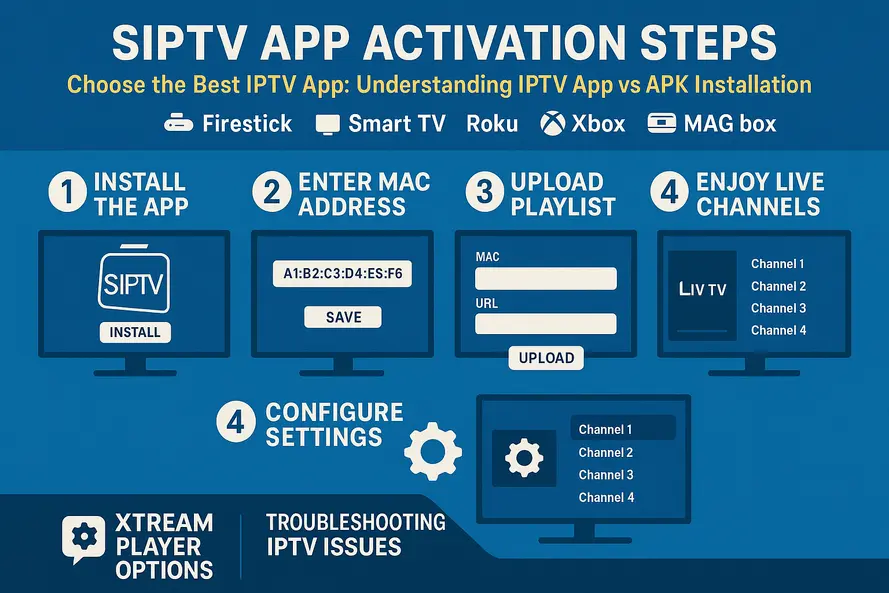
Activation in the IPTV context involves three key steps: installing the app on your device, linking your device through a MAC address or account code, and adding a playlist using M3U files or Xtream Codes. While Siptv is one of the most popular IPTV players, the same basic process applies to other apps across different platforms.
By the end, you’ll know how to choose the best IPTV app for your device, activate Siptv and similar apps, use IPTV Xtream Player, troubleshoot common issues, and stay on the right side of legal and safety concerns.
Choosing the Best IPTV App and APK
Before diving into activation, you need to pick the right tools for your setup. The best IPTV app depends on several factors that directly impact your viewing experience.
Core Criteria for the Best IPTV App
Stability and performance top the list. Look for apps that deliver smooth streaming with minimal buffering, even during peak hours. The best IPTV app should support multiple formats including M3U playlists, Xtream Codes API, and Electronic Program Guide (EPG) integration for a complete TV experience.
User interface matters more than you might think. Easy channel navigation, favorites management, category organization, and search functionality can make or break your daily viewing. Multi-device support is equally crucial, especially if you plan to use the same service across smart TVs, Android devices, Firestick, or other platforms.
Legal status and transparency deserve serious consideration. Remember, the app itself is simply a player. Legality depends entirely on your IPTV provider and whether they have proper licensing for the content they offer. Popular options include Siptv, IPTV Smarters, TiviMate, and various IPTV Xtream Player applications.
Understanding IPTV App vs IPTV APK
IPTV app refers to any IPTV player installed from an official app store like Google Play, Samsung Store, Amazon Appstore, or Microsoft Store. These apps are safer for most users and update automatically, reducing security risks and compatibility issues.
IPTV apk is the Android app package file you can download and sideload manually. This becomes relevant for Firestick IPTV apk installations and other Android TV devices when the app isn’t available in your local store due to geographic restrictions or publisher policies.
On Android TV and Firestick devices, choose a reputable IPTV app from official stores whenever possible. Use IPTV apk sideloading only when necessary, and always source files from trusted developers rather than random mirrors that might contain malware.
For Smart TVs like Samsung or LG models, prefer official store players over complex sideloading workarounds. Most manufacturers provide robust app ecosystems that include legitimate IPTV options.
How to Activate the Siptv App Step-by-Step
Siptv activation follows a consistent pattern across devices, though specific details vary by platform. Understanding this process helps you troubleshoot issues and adapt to different setups.
Prerequisites for Activation
You’ll need a stable internet connection with at least 10-20 Mbps downstream for HD content (higher for 4K streams). Ensure you have a compatible device and subscription details from a legitimate IPTV provider, including either an M3U playlist URL or Xtream Codes details (server URL, username, and password).
Install Siptv on your target device before beginning the activation process. The app must be running to generate the unique identifier needed for web-based activation.
Universal Siptv Activation Steps
Start by installing the Siptv app through your device’s official app store. On Smart TVs, search for “Smart IPTV” or “Siptv” in the TV’s app marketplace. For Android and Firestick devices, use the respective app stores or sideload a trusted IPTV apk if the app isn’t available in your region.
Open Siptv and locate the MAC address or device identifier displayed on the first launch screen. Write this down or take a photo, as you’ll need it for web activation.
Navigate to the official Siptv activation website using a computer or smartphone browser. Enter your device MAC address and upload your playlist or input your M3U URL. If your provider uses Xtream Codes, enter the server URL, username, and password in the appropriate fields.
For M3U playlists, paste the complete URL provided by your IPTV service. Optionally add an EPG URL if your provider offers electronic program guide data. For Xtream Codes setups, the server details mirror the workflow used by many Xtream-based applications.
Save your configuration and pay any required activation fees. Some versions of Siptv charge a small one-time fee for device activation, separate from your IPTV service subscription. After saving, return to your TV or device and restart the Siptv app. Channels and categories should load automatically.
Common Activation Requirements and Pitfalls
Verify that your provider supports M3U or Xtream Codes formats compatible with Siptv. Some services use proprietary formats that won’t work with standard IPTV players.
Regional app store availability can create complications. If Siptv doesn’t appear in your local store, consider alternative IPTV apps or research trusted best IPTV apk sources for sideloading.
Remember that app activation (the one-time Siptv fee) is separate from your ongoing IPTV service subscription. Both payments may be required for full functionality.
Device-Specific IPTV Setup Guide
Each platform has unique installation procedures, app availability, and configuration requirements. Here’s how to get IPTV working on the most popular devices.
Firestick and Android TV Setup
For Firestick installations, open the Amazon Appstore from the home screen and search for your chosen IPTV Firestick app here. Popular options include Siptv, IPTV Smarters, and TiviMate. Install the app and follow the activation steps outlined above.
When you need Firestick IPTV apk sideloading, enable “Apps from Unknown Sources” in FireTV settings first. Install the Downloader app from the Amazon Appstore, then enter the URL for the best IPTV apk from a trusted developer source. Download and install the file, then configure your playlist or Xtream codes.
Avoid typing long M3U links with the Firestick remote, which is error-prone and frustrating. Copy URLs from email or use shortened links when possible. Never download apks from questionable sources due to malware and data security risks.
Android TV devices follow similar procedures using the Google Play Store. Search for “IPTV” or specific app names, install your preferred option, and configure M3U or Xtream Codes as needed. Android phones and tablets use the same process, with the added option to cast content to your TV or connect via HDMI.
Smart TV IPTV Installation
Samsung Smart TVs require accessing the Samsung App Store through the Home button menu. Search for “Smart IPTV” or browse available IPTV Samsung app options. Install your chosen application and launch it to view the MAC address or device identifier.
Visit the app’s official activation website from a computer, enter the MAC address, and add your M3U or Xtream codes data. Save the configuration and restart the app on your TV to load channels and program guides.
App availability varies significantly by TV model year and geographic region. If Siptv is missing from your Samsung store, explore alternative IPTV on smart TV options available in your marketplace.
IPTV on Roku Limitations
Roku presents unique challenges for IPTV on Roku users due to the platform’s restrictive policies regarding unofficial IPTV players. Many classic IPTV apps have been removed from the Roku Channel Store or blocked entirely.
Your best option involves using casting from a phone or tablet running an IPTV app. Install your preferred IPTV application on an Android or iOS device, then stream or cast the screen to Roku using built-in casting features or screen mirroring.
Private channels and developer mode were used historically for IPTV access, but policies change frequently. Many online guides are outdated, and users should be cautious to ensure compliance with Roku’s current terms of service.
The recommended workflow for IPTV on Roku involves running an IPTV app on a separate device (phone, computer, or dedicated Android box) and casting or connecting via HDMI to your TV, rather than relying on native Roku IPTV applications. For a full Roku compatibility walkthrough, see this guide.
Xbox IPTV Configuration
Xbox One and Series S/X consoles can run streaming apps from the Microsoft Store, making IPTV on Xbox possible with the right software. Search the Microsoft Store for IPTV players that support M3U playlists or Xtream codes login.
Install compatible apps from the store search results. Enter your M3U URL or Xtream credentials as provided by your IPTV service. Performance depends heavily on app quality, network connection stability, and Xbox hardware capabilities.
If no suitable IPTV app exists in the Microsoft Store currently, consider connecting an HDMI cable from a device that supports IPTV apps, such as an Android box, laptop, or tablet.
MAG Box Portal Configuration
IPTV MAG box devices are dedicated set-top boxes designed specifically for IPTV portal connections. These devices don’t require separate app installation since IPTV functionality is built into the firmware.
Connect your MAG box to your TV via HDMI and to your router using Ethernet for optimal performance. Power on the device and navigate to Settings, then System Settings, then Servers, and finally Portals.
In “Portal 1 name,” enter a descriptive name like “My IPTV Service.” In “Portal 1 URL,” input the complete portal address provided by your IPTV provider. Save the configuration and reboot the MAG box.
After rebooting, the IPTV MAG box will automatically load channels and categories from the configured portal. MAG boxes typically don’t require separate app activation fees since they connect directly to provider portals rather than using third-party applications. For a dedicated MAG device setup guide see this resource.
Understanding Xtream Player Options
IPTV Xtream Player applications are built around the Xtream Codes API, offering an alternative approach to traditional M3U playlist setups. Instead of using raw M3U URLs, you input server credentials including server URL, username, and password.
What Makes Xtream Player Different
Xtream Player apps automatically generate channel lists, video on demand libraries, and electronic program guides directly from your provider’s API. This creates a more integrated experience compared to basic M3U imports.
These applications are popular across Android, iOS, and some Smart TV platforms. The login process typically involves three fields: server address (often including port numbers), your assigned username, and your account password.
Comparing Setup Methods
M3U setups with apps like Siptv require uploading playlist files or URLs via the app’s website or in-app configuration. This method offers broad compatibility but can be cumbersome for users managing multiple playlists or frequent updates.
IPTV Xtream Player login systems provide simpler initial setup with automatic content discovery. Users find Xtream-API-based configurations easier because they only need to remember login credentials rather than managing long URLs.
Some users prefer M3U for its portability across different apps and platforms. Others gravitate toward Xtream Players for their streamlined setup process and better organization of Live TV, VOD, and series content. For more on IPTV stream players and Xtream-compatible apps, see this guide.
Choosing Between Methods
If your provider offers Xtream Codes access, try a dedicated Xtream Player first for simplicity and feature integration. These apps often provide superior content organization and automatic updates compared to basic M3U imports.
For maximum flexibility across multiple devices and apps, choose a high-quality best IPTV app that supports both M3U and Xtream formats. This approach provides backup options if one method encounters compatibility issues.
Quick Device Setup Reference
- Firestick: Install IPTV Firestick app from Amazon Appstore (Siptv, IPTV Smarters). If unavailable, sideload trusted Firestick IPTV apk via Downloader app. Configure M3U/Xtream details in-app or activate Siptv via website. See the Firestick guide here for detailed steps.
- Android TV/Phone: Install best IPTV app from Google Play or sideload verified IPTV apk. Configure M3U or Xtream credentials and enable EPG for complete program guides. Refer to the apps guide here.
- Samsung Smart TV: Use TV app store to install IPTV Samsung app like Smart IPTV. Activate via MAC address on app website and upload playlist data. See this guide for optimization tips.
- Roku: Limited native IPTV on Roku support. Use casting or screen mirroring from mobile IPTV apps. Prefer official, licensed channels when available. See this article for Roku workarounds.
- Xbox: For IPTV on Xbox, install compatible apps from Microsoft Store. Enter M3U or Xtream credentials in-app. Consider HDMI from another device if no suitable apps exist.
- MAG Box: Configure portal URL in System Settings → Servers → Portals for IPTV MAG box setup. Reboot to load channels from provider portal. MAG box guide: this resource.
- Xtream Setup: Use IPTV Xtream Player apps for quick username/password configuration with automatic content discovery. For Xtream and stream player details see this guide.
Troubleshooting Common IPTV Issues
Activation errors often stem from incorrect MAC address entry. Double-check that the MAC entered on the activation website exactly matches what appears in your app. If playlists won’t load, confirm your M3U URL is active by testing it in a browser or VLC media player — see our M3U playlist guide and the troubleshooting guide.
Apps reporting “trial expired” messages typically require paying the one-time activation fee before full functionality becomes available. Restart the app after completing payment to refresh the activation status.
Xtream Player login failures usually involve server URL format issues. Verify http versus https protocols and ensure proper port numbers are included. Check that usernames and passwords are entered exactly as provided, including proper capitalization. Contact your provider if account suspension is suspected.
Buffering and playback issues often resolve with network improvements. Use wired Ethernet connections where possible, or move devices closer to your router for stronger Wi-Fi signals. Avoid heavy downloads during streaming periods and reduce stream quality settings from 4K to 1080p or 720p when bandwidth is limited.
Codec and format compatibility problems affect older IPTV on smart TV apps and some MAG boxes that can’t handle newer video codecs or 4K streams. Try alternative IPTV apps or update device firmware to resolve compatibility issues.
Device-specific problems require targeted solutions. If Roku tutorials show channels that no longer exist, the information is likely outdated since Roku frequently removes unofficial IPTV channels. For Smart TVs missing Siptv from their app stores, consider using dedicated streaming devices like Firestick or Android boxes instead of attempting risky sideloading procedures.
Safety and Legal Considerations
An IPTV app or IPTV apk is simply software for playing video streams. Legality depends entirely on the content you access and whether your IPTV provider has proper licensing rights for that material.
Choose services that are transparent about their licensing agreements and content ownership. Be cautious of ultra-cheap providers promising “all channels worldwide” without clear legal basis or proper business documentation.
Install IPTV applications only from trusted sources like official app stores or well-known developers. Avoid apps requesting suspicious permissions such as SMS access or contacts without clear justification for those requirements.
Some users employ VPNs for privacy protection or to access legitimate subscriptions while traveling. Ensure compliance with both provider terms of service and local regulations when using such tools.
Quick-Start Activation Checklist
- Select your target device: Firestick, Smart TV, Roku, Xbox, or MAG box.
- Choose a reliable IPTV provider offering clear pricing and M3U or Xtream Codes support.
- Decide on your player software: Siptv (requires web activation), best IPTV app for your platform, or IPTV Xtream Player.
- Install the app from your device’s official store, or sideload a trusted IPTV apk on Android/Firestick.
- Add your credentials: activate Siptv with MAC address and playlist details via website, enter server/username/password in Xtream Player, or configure portal URL in MAG box system settings.
- Restart the application and wait for channels and EPG data to load.
- Test several channels including HD streams to verify stability and quality.
- Configure favorites, adjust settings for language and time zone, and set EPG update frequency.
- Keep apps and device firmware updated, and monitor provider communications for service updates.
Frequently Asked Questions
What is IPTV activation?
IPTV activation refers to the process of setting up the IPTV app on a device, linking accounts or MAC addresses, and adding playlists to enable streaming.
Can I activate an IPTV app without a MAC address?
Most IPTV apps, including Siptv, require a MAC address for activation as it uniquely identifies your device in the service.
What should I do if my IPTV channels aren’t loading?
First, check your internet connection and verify the playlist URL you entered. Ensure the IPTV provider’s service is active and that you’re using a supported app.
Are any apps specifically recommended for IPTV?
Yes, some popular apps include Siptv, IPTV Smarters, and TiviMate. Each app has its strengths and is suited for different devices.
How can I ensure my IPTV service is legal?
Research your IPTV provider thoroughly. Choose services that offer clear licensing information and avoid extremely low-cost services that appear dubious.