How to Set Up IPTV Smarters on Firestick: Complete Installation and Setup Guide
Estimated reading time: 12 minutes
Nexott is the most stable IPTV — watch every match without buffering
Key Takeaways
- Comprehensive Setup: Follow detailed steps to successfully install IPTV Smarters Firestick.
- Understanding Applications: Know the difference between IPTV apps and APKs for better choices.
- Optimized Performance: IPTVs on various devices require unique configurations for the best experience.
- Troubleshooting: Common issues can be addressed with simple solutions and regular maintenance.
- Legal Awareness: Ensure that you are using licensed IPTV services to avoid legal repercussions.
Table of Contents
- Introduction
- Understanding IPTV Apps and APKs
- IPTV Smarters Firestick Setup Guide
- IPTV on Smart TV Devices
- IPTV on Roku Streaming Devices
- IPTV on Xbox Gaming Consoles
- IPTV MAG Box Configuration
- Common Troubleshooting Solutions
- Legal Considerations and Safety
- Getting Started with Your IPTV Setup
- Frequently Asked Questions
Introduction
Setting up IPTV Smarters Firestick can significantly enhance your streaming capabilities, providing access to live channels and on-demand content in one place. This guide outlines the entire installation and configuration process, ensuring you have everything needed to optimize your IPTV experience.
Understanding IPTV Apps and APKs
Before diving into the setup, understand that IPTV apps are pre-built applications found on official app stores, while IPTV APKs are Android package files for manual installation.
When selecting an IPTV app or APK, consider these critical factors:
- Speed and Performance: Quick loading times and stable streaming are essential.
- Stability: Choose apps that minimize crashes during playback.
- Playlist Support: Check for compatibility with M3U and XMLTV formats.
- EPG Integration: Essential for easy navigation through viewing schedules.
- User Interface: A clean, intuitive design simplifies navigation.
For detailed information on IPTV apps, visit this guide.
IPTV Smarters Firestick Setup Guide
To install IPTV Smarters Firestick, sideloading is necessary because Amazon’s app store doesn’t officially support IPTV applications. Here’s a comprehensive guide to help you through the installation process. For more detailed steps, see this article.
Enabling Unknown Sources on Firestick
Begin by enabling installations from unknown sources:
- Go to Settings.
- Select “My Fire TV.”
- Click on “Developer Options.”
- Toggle “Apps from Unknown Sources” to ON.
- Confirm your choice.
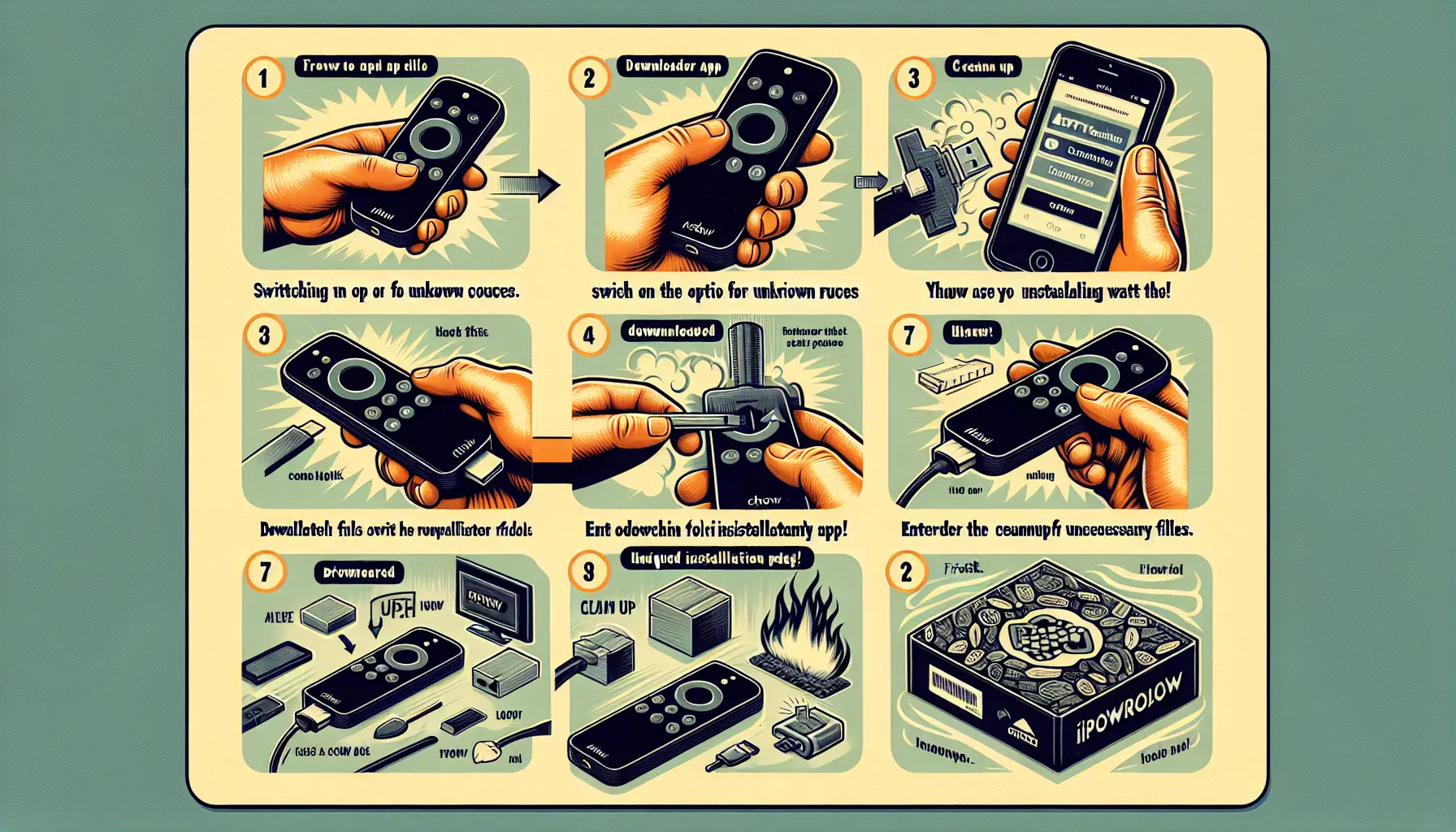
Step-by-Step Installation Process
Follow these steps to install the IPTV Firestick app:
- Download Downloader App: Search for “Downloader” in the Amazon app store, install, and open it.
- Enter Installation Code: Input code 250931 (TROYPOINT Toolbox) or a direct URL: https://bit.ly/smarters-pro.
- Download and Install: Click “Go,” followed by “Download” and “Install” upon prompt.
- Clean Up Files: Select “Done,” followed by “Delete” to remove the APK to save storage.
- Launch Application: Find IPTV Smarters in your Apps & Channels section and start it.
Configuration and Login Setup
Upon installation, configure your IPTV Smarters by entering your subscription details. If you prefer an optimized Firestick layout, choose the “TV” interface, accept the terms, and select your login method:
- Login with Xtream Codes API: Enter your server URL, username, and password.
- Load Your Playlist: Use your provided M3U URL from your IPTV service.
For more on M3U playlists, see this guide.
Troubleshooting Common Firestick Issues
For any installation issues, consider these troubleshooting solutions:
- Buffering Issues: Clear cache via Settings > Applications > IPTV Smarters > Clear Cache.
- Network Problems: Use an ethernet adapter for stable connectivity.
- Playback Quality: Lower video quality in Player Options during slow connections.
- Permission Errors: Re-enable unknown sources if installation fails.
For more troubleshooting steps, see this guide.
IPTV on Smart TV Devices
The compatibility of IPTV on Smart TV devices varies based on the operating system:
- Android TV: Supports IPTV APK sideloading.
- Samsung Smart TVs: Limited options; check the Samsung App Store.
- LG Smart TVs: Similar restrictions; some third-party applications may be available.
For full Smart TV guides, refer to this article.
IPTV on Roku Streaming Devices
With IPTV on Roku, direct installation of IPTV Smarters isn’t possible. However, you can utilize these options:
- Official IPTV Channels: Look for legitimate IPTV applications in the Roku Channel Store.
- Screen Mirroring: Mirror your smartphone or computer screen to view IPTV content.
- Casting: Use casting features from Android devices with IPTV applications.
For Roku-specific player options, visit this guide.
IPTV on Xbox Gaming Consoles
The lack of <=b>official IPTV apps for Xbox complicates streaming. Here are possible solutions:
- Use the Microsoft Edge browser for web-based IPTV utilities.
- Sideload apps using Xbox Dev Mode (requires technical skills).
- Casting from mobile devices via compatible apps.
Consider dedicated streaming devices for reliable IPTV access, given the potential performance issues.
IPTV MAG Box Configuration
IPTV MAG box devices are excellent for IPTV services, running IPTV Smarters or Xtream Player with ease. For full setup guidance, check this article.
Installation involves:
- Downloading the IPTV APK to a USB drive.
- Inserting the USB into your MAG box.
- Using the file manager to locate and install the APK.
- Configuring your login credentials.
Common Troubleshooting Solutions
If you face streaming issues, follow this checklist:
Network and Buffering Problems
- Use ethernet for stable streaming.
- Clear application cache in device settings.
- Change DNS servers to 8.8.8.8 or 1.1.1.1.
- Ensure internet speed meets IPTV needs.
Login and Authentication Errors
- Double-check your Xtream Codes credentials.
- Try an M3U playlist if Xtream Codes fails.
- Contact your IPTV provider for account verification.
- Test credentials on other devices.
For specific Smarters issues, refer to this guide.
Legal Considerations and Safety
When using IPTV applications like Smarters, ensure you have legitimate, licensed subscriptions. Avoid any providers offering unrealistic prices or pirated content, as they can expose you to legal implications. Verify your IPTV provider’s legitimacy through reviews and licensing.
Getting Started with Your IPTV Setup
Begin your IPTV journey with IPTV Smarters Firestick installation. Enable unknown sources, install the Downloader app, and utilize the access code to install IPTV Smarters. Enter your IPTV subscription legitimately to unlock a world of content.
Maintain your setup regularly through cache clearing and updates for an optimal streaming experience. With a properly configured system and quality IPTV provider, enjoy a rich selection of live channels and on-demand content.
Frequently Asked Questions
What do I need to use IPTV Smarters?
You need a compatible device and a legitimate IPTV subscription.
Is using IPTV Smarters legal?
Using IPTV Smarters is legal as long as you subscribe to licensed services.
Can I use IPTV Smarters on multiple devices?
Yes, IPTV Smarters is available on various platforms, including Android, iOS, and Windows.
What should I do if my IPTV service is buffering?
If buffering occurs, check your internet connection and try lowering the playback quality.
How do I troubleshoot login issues?
Double-check your login details and confirm that your subscription is active.